Originally published at https://bestlatestapps.com/blog/a-document-scanner-in-an-afternoon/
Apple's document camera on iOS 13+, a Vision rectangle-detection fallback for older devices, enhancing scans with Core Image, saving locally, sharing PNGs and printing

Document scanning used to be a serious computer-vision project: find the page's edges, correct the perspective, flatten the lighting, sharpen the text. Today, most of that is a system view controller, but there's still plenty to get right around it. That includes older devices, enhancement that doesn't destroy a receipt's faint print, storage that never leaves the phone, and sharing and printing that just work.
Scan Via Cam is my take on the simple version: point the camera at a receipt, note, invoice, whiteboard, business card or certificate, and get "clear & sharp" images you can share as PNGs or print over AirPrint. Its listing adds two promises I care about: "Documents are saved on your phone, and we do not save them on our server", and "No Signup, No Credit Card".
This article covers how I'd build that on iOS: VNDocumentCameraViewController for capture, a fallback for the app's iOS 12 minimum, Core Image enhancement, local storage, sharing and AirPrint. API names and availability are checked against Apple's docs. As always, this is the approach I'd use, not a line-by-line tour of the app.
1. The scanner pipeline
capture ──▶ detect edges ──▶ perspective-correct ──▶ enhance ──▶ save (PNG) ──▶ share / print
   │                 └──── VNDocumentCameraViewController does these on iOS 13+ ────┘
   └── iOS 12 fallback: camera photo → VNDetectRectanglesRequest → CIPerspectiveCorrection
On iOS 13 and later, Apple's document camera handles capture, edge detection, auto-capture and perspective correction. The app supports iOS 12.0 and later, so it also needs a path for devices that can't use it. Both paths end up with plain UIImages, and everything after that is shared.
2. Capture with VNDocumentCameraViewController (iOS 13+)
VNDocumentCameraViewController (VisionKit, iOS 13+) presents the full scanning UI: live edge highlighting, automatic or manual capture, multi-page scans and per-page crop adjustment. You get back a VNDocumentCameraScan with one corrected image per page.
import UIKit
import VisionKit

@available(iOS 13.0, *)
final class DocumentCameraCoordinator: NSObject, VNDocumentCameraViewControllerDelegate {
    var onPages: (([UIImage]) -> Void)?

    static var isSupported: Bool { VNDocumentCameraViewController.isSupported }

    func makeController() -> VNDocumentCameraViewController {
        let controller = VNDocumentCameraViewController()
        controller.delegate = self
        return controller
    }

    func documentCameraViewController(_ controller: VNDocumentCameraViewController,
                                      didFinishWith scan: VNDocumentCameraScan) {
        let pages = (0..<scan.pageCount).map { scan.imageOfPage(at: $0) }
        controller.dismiss(animated: true) { self.onPages?(pages) }
    }

    func documentCameraViewControllerDidCancel(_ controller: VNDocumentCameraViewController) {
        controller.dismiss(animated: true)
    }

    func documentCameraViewController(_ controller: VNDocumentCameraViewController,
                                      didFailWithError error: Error) {
        controller.dismiss(animated: true)
        print("Scan failed: \(error)")
    }
}
Notes:
Camera permission is still yours to declare. Add NSCameraUsageDescription, for example "Scan Via Cam uses the camera to scan your documents." The system shows the prompt the first time the scanner opens.
Check isSupported before offering the button. If it's false, use the fallback below.
The scanner's images are already cropped and flattened, so don't run your own perspective correction on them again.
3. The iOS 12 fallback: Vision rectangles and perspective correction
Vision's VNDetectRectanglesRequest has been around since iOS 11. It finds quadrilaterals in an image, which you can then flatten with Core Image's perspective-correction filter. Take the photo with UIImagePickerController, then:
import UIKit
import Vision
import CoreImage

enum ManualDocumentDetector {

    /// Finds the most prominent page-like rectangle and returns a flattened crop.
    static func flatten(_ image: UIImage, completion: @escaping (UIImage?) -> Void) {
        guard let cgImage = image.cgImage else { return completion(nil) }
        let orientation = CGImagePropertyOrientation(image.imageOrientation)

        let request = VNDetectRectanglesRequest { request, _ in
            guard let rect = (request.results as? [VNRectangleObservation])?.first else {
                return DispatchQueue.main.async { completion(image) }   // no page found: keep original
            }
            let output = correct(CIImage(cgImage: cgImage).oriented(orientation), using: rect)
            DispatchQueue.main.async { completion(output) }
        }
        request.minimumAspectRatio = 0.3          // receipts are tall and thin
        request.maximumAspectRatio = 1.0
        request.minimumSize = 0.3                 // page should fill a fair part of the frame
        request.minimumConfidence = 0.6
        request.maximumObservations = 1

        DispatchQueue.global(qos: .userInitiated).async {
            try? VNImageRequestHandler(cgImage: cgImage, orientation: orientation).perform([request])
        }
    }

    private static func correct(_ image: CIImage, using r: VNRectangleObservation) -> UIImage? {
        // Vision returns normalised coordinates (0...1, origin bottom-left); scale to pixels.
        let size = image.extent.size
        func point(_ p: CGPoint) -> CIVector { CIVector(x: p.x * size.width, y: p.y * size.height) }

        guard let filter = CIFilter(name: "CIPerspectiveCorrection") else { return nil }
        filter.setValue(image, forKey: kCIInputImageKey)
        filter.setValue(point(r.topLeft), forKey: "inputTopLeft")
        filter.setValue(point(r.topRight), forKey: "inputTopRight")
        filter.setValue(point(r.bottomLeft), forKey: "inputBottomLeft")
        filter.setValue(point(r.bottomRight), forKey: "inputBottomRight")

        guard let output = filter.outputImage,
              let cg = CIContext().createCGImage(output, from: output.extent) else { return nil }
        return UIImage(cgImage: cg)
    }
}

extension CGImagePropertyOrientation {
    init(_ o: UIImage.Orientation) {
        switch o {
        case .up: self = .up; case .down: self = .down; case .left: self = .left; case .right: self = .right
        case .upMirrored: self = .upMirrored; case .downMirrored: self = .downMirrored
        case .leftMirrored: self = .leftMirrored; case .rightMirrored: self = .rightMirrored
        @unknown default: self = .up
        }
    }
}
The string-keyed CIFilter(name:) form is used on purpose. The type-safe CIFilter.perspectiveCorrection() builders are iOS 13+, so on an iOS 12 target the classic API is the one that works everywhere.
Show the detected quadrilateral over the photo and let the user drag the corners before you flatten. Automatic detection fails on low-contrast pages (white paper on a white desk), and a manual adjust step rescues those.
4. "Optimise scan quality": enhancing with Core Image
The listing says "Smart cropping and auto enhancing make the texts and graphics look clear and sharp." Cropping is done by now. For enhancement, Core Image has a filter built for exactly this, CIDocumentEnhancer, which "adjusts an image's shadows and contrast", plus the general-purpose CIColorControls:
import CoreImage
import CoreImage.CIFilterBuiltins
import UIKit

enum ScanEnhancer {
    enum Mode { case original, enhanced, blackAndWhite }

    private static let context = CIContext()          // create once; it's expensive

    static func apply(_ mode: Mode, to image: UIImage) -> UIImage {
        guard mode != .original, let input = CIImage(image: image) else { return image }
        var output = input

        if #available(iOS 13.0, *) {
            let enhancer = CIFilter.documentEnhancer()
            enhancer.inputImage = output
            enhancer.amount = 1.0
            output = enhancer.outputImage ?? output

            if mode == .blackAndWhite {
                let controls = CIFilter.colorControls()
                controls.inputImage = output
                controls.saturation = 0          // greyscale
                controls.contrast = 1.3          // push faint print darker
                output = controls.outputImage ?? output
            }
        } else {
            // iOS 12: string-keyed filters only.
            let controls = CIFilter(name: "CIColorControls")!
            controls.setValue(output, forKey: kCIInputImageKey)
            controls.setValue(mode == .blackAndWhite ? 0 : 1, forKey: kCIInputSaturationKey)
            controls.setValue(1.2, forKey: kCIInputContrastKey)
            output = controls.outputImage ?? output
        }

        guard let cg = context.createCGImage(output, from: input.extent) else { return image }
        return UIImage(cgImage: cg, scale: image.scale, orientation: .up)
    }
}
A few rules I'd follow:
Keep the original. Store the unenhanced image and apply the filter for display and export. Users switch modes, and enhancement can't be undone on pixels you've thrown away.
Offer three modes, not ten sliders: Original, Enhanced and Black & White. That covers receipts, colourful whiteboards and text-heavy pages.
Black & White isn't thresholding. A hard threshold destroys faint thermal-printer receipts. A contrast push on greyscale keeps them readable.
One shared CIContext. Creating one per image is the most common Core Image performance mistake.
5. "Saved on your phone": local storage done properly
There's no server and no account, so the files on the device are the product. Store each scan as a folder with the original and its settings:
import UIKit

struct ScanRecord: Codable, Identifiable {
    let id: UUID
    let createdAt: Date
    var title: String
    var pageCount: Int
    var mode: String           // "original", "enhanced", "bw"
}

final class ScanLibrary {
    private let root: URL = {
        let docs = FileManager.default.urls(for: .documentDirectory, in: .userDomainMask)[0]
        let dir = docs.appendingPathComponent("Scans", isDirectory: true)
        try? FileManager.default.createDirectory(at: dir, withIntermediateDirectories: true)
        return dir
    }()

    func save(pages: [UIImage], title: String) throws -> ScanRecord {
        let record = ScanRecord(id: UUID(), createdAt: Date(), title: title,
                                pageCount: pages.count, mode: "enhanced")
        let folder = root.appendingPathComponent(record.id.uuidString, isDirectory: true)
        try FileManager.default.createDirectory(at: folder, withIntermediateDirectories: true)

        for (i, page) in pages.enumerated() {
            guard let png = page.pngData() else { continue }
            // Encrypted at rest while the device is locked.
            try png.write(to: folder.appendingPathComponent("page-\(i + 1)-original.png"),
                          options: [.atomic, .completeFileProtection])
        }
        try JSONEncoder().encode(record).write(to: folder.appendingPathComponent("record.json"),
                                               options: [.atomic, .completeFileProtection])
        return record
    }
}
Two privacy decisions are worth calling out:
.completeFileProtection. Scans are receipts, IDs and certificates, so they should be unreadable while the phone is locked. Unlike a reminder app, a scanner never needs to write in the background, so the strongest protection costs nothing.
Think about backups deliberately. Files in Documents are included in the user's own iCloud or computer backup, which is usually what people want for their documents. If you'd rather exclude them, set URLResourceValues.isExcludedFromBackup and say so in the app.
6. Share as PNG, and print with AirPrint
The listing calls out both: "Easily share documents in Png format… via social media, email attachment" and "Instantly print out docs… with nearby printer via AirPrint".
import UIKit

enum ScanOutput {

    /// Share sheet: Mail, Messages, social apps, Files, AirDrop… and Print.
    static func share(_ pages: [UIImage], from source: UIViewController, anchor: UIView) {
        let items: [Any] = pages.compactMap { $0.pngData() }
        let sheet = UIActivityViewController(activityItems: items, applicationActivities: nil)
        sheet.popoverPresentationController?.sourceView = anchor     // required on iPad
        source.present(sheet, animated: true)
    }

    /// Direct AirPrint, for a dedicated Print button.
    static func print(_ pages: [UIImage], jobName: String) {
        guard UIPrintInteractionController.isPrintingAvailable else { return }
        let info = UIPrintInfo(dictionary: nil)
        info.outputType = .grayscale        // documents: cheaper and usually crisper
        info.jobName = jobName

        let controller = UIPrintInteractionController.shared
        controller.printInfo = info
        controller.printingItems = pages    // one image per page
        controller.present(animated: true, completionHandler: nil)
    }
}
Sharing PNG Data rather than UIImage objects means the receiving app gets the lossless file you saved, not a re-compressed JPEG. And popoverPresentationController.sourceView isn't optional on iPad: without it, presenting the share sheet crashes.
Set outputType to .photo for scanned photos or colour certificates. For text documents, .grayscale is the better default.
7. Real-world example: Scan Via Cam
This is the approach I'd use, and recommend, for Scan Via Cam.
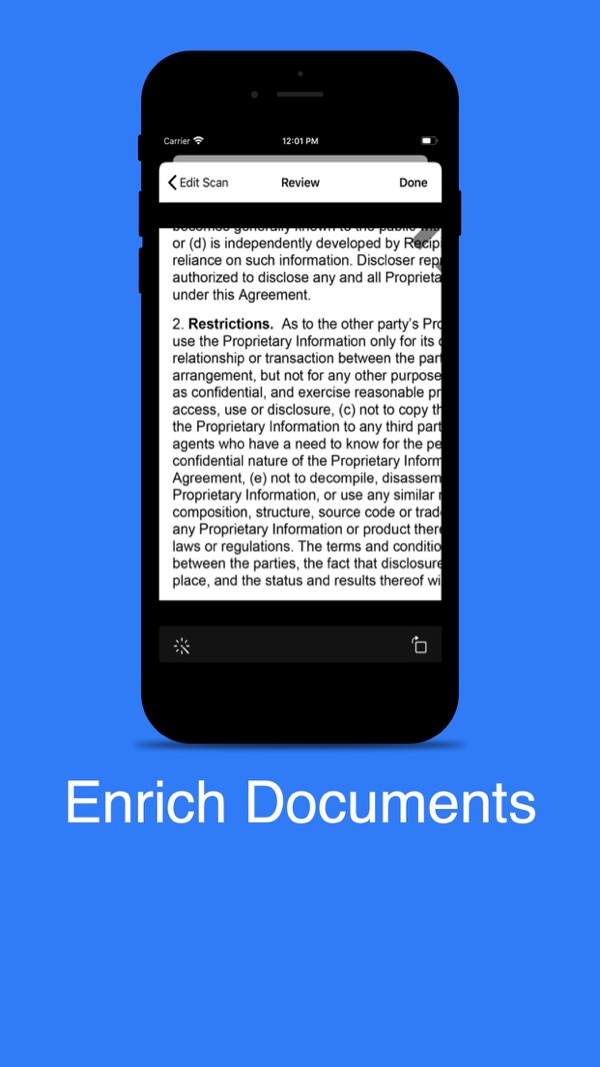
At the time of writing, its App Store listing shows:
Free, in Productivity and Utilities First released in August 2020 6 ratings in the US store, averaging about 4.7 stars Supports iOS 12.0 and later
How the listing maps to this article:
| What the listing says | Where it's covered |
| --- | --- |
| "Use your phone camera to scan receipts, notes, invoices, whiteboard discussions, business cards, certificates" | Document camera on iOS 13+, Vision fallback on iOS 12 (sections 2–3) |
| "Smart cropping and auto enhancing make the texts and graphics look clear and sharp" | Rectangle detection and perspective correction; CIDocumentEnhancer and colour controls (sections 3–4) |
| "Easily share documents in Png format… via social media, email attachment" | UIActivityViewController with PNG data (section 6) |
| "Instantly print out docs… via AirPrint" | UIPrintInteractionController (section 6) |
| "Documents are saved on your phone, and we do not save them on our server" / "No Signup, No Credit Card" | Local folder storage with complete file protection, no account (section 5) |
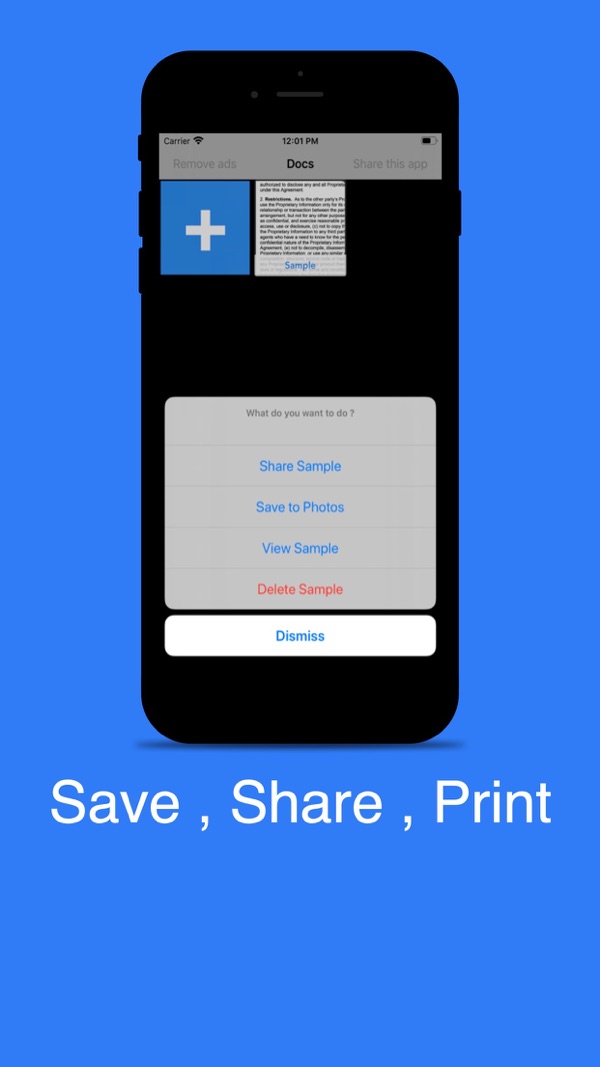
The iOS 12 minimum is the most interesting constraint here. It's why the article carries a Vision-based fallback and string-keyed Core Image filters, while devices on iOS 13 and later get Apple's full document camera.
8. Before you ship a scanner: a checklist
- Camera permission has a clear purpose string, and a denied state links to Settings.
VNDocumentCameraViewController.isSupportedis checked, and older devices get a working fallback.- Detected corners are adjustable before flattening.
- Originals are kept, and enhancement is re-applied, never baked in.
- Faint receipts survive Black & White mode. Test with a real thermal-paper receipt.
- Files use complete protection, and your backup behaviour is a deliberate choice.
- Sharing sends PNG data, and the share sheet has a source view on iPad.
- AirPrint is tested on a real printer, in greyscale and colour.
- Your privacy claims are literally true. No upload, no analytics on document content, and App Privacy details to match.
Wrapping up
The hardest parts of document scanning are now system features: on iOS 13 and later, VNDocumentCameraViewController gives you capture, edge detection and flattening in a few lines. What's left is product craft: a fallback for older devices, enhancement that respects faint print, private local storage, and output that works with every app and printer the user has.
Try it, or explore my other apps:
Scan Via Cam (iOS): https://apps.apple.com/us/app/scan-via-cam/id1525874032 All of my free iOS apps: https://apps.apple.com/us/developer/alok-singh/id1508795536 My portfolio: https://bestlatestapps.com/alok/
What's the hardest document you've had to scan? Glossy certificates under office lights are my nemesis. Tell me yours in the comments.
— Alok Kumar Singh
Originally published at <https://bestlatestapps.com/blog/a-document-scanner-in-an-afternoon/>