Originally published at https://bestlatestapps.com/blog/a-practical-guide-to-ios-haptics/
The three layers of haptic APIs, when to use each, building custom patterns with intensity and sharpness, AHAP files, looping and speed control, and two deprecations to know about in iOS 27

Haptics are the most under-designed part of most iOS apps. Developers add .impactOccurred() to a button, feel it once on their own phone and move on. But haptics are a vocabulary: a light tick for a selection, a crisp double-tap for success, a heavier, duller buzz for an error. Used well, they make an app feel physical. Used badly, they make it feel noisy.
The trouble is that you can't see a haptic. You can read that .rigid is "sharper" than .soft, but you have to feel the difference. That's why I built Haptics Explorer: a developer tool for browsing, testing and generating code for haptic feedback. Its library spans impacts, notifications, selection, rhythms like heartbeat and tick-tock, gesture and game patterns, plus a custom pattern creator, a sequence editor and AHAP import and export.
This article is the guide that sits behind that app: the three layers of haptic APIs on iOS, how to choose between them, how Core Haptics patterns are built from intensity and sharpness, how AHAP files work, and how to loop and speed up patterns. API names and availability are checked against Apple's documentation, and there are two iOS 27 deprecations worth knowing about.
1. Three layers, three jobs
iOS gives you haptics at three levels of control:
| Layer | API | Use it for |
| --- | --- | --- |
| System feedback (UIKit) | UIImpactFeedbackGenerator, UISelectionFeedbackGenerator, UINotificationFeedbackGenerator (iOS 10+) | Standard UI moments: taps, toggles, picker ticks, success/error |
| System feedback (SwiftUI) | .sensoryFeedback(_:trigger:) (iOS 17+) | The same, declaratively, tied to state changes |
| Custom patterns | Core Haptics: CHHapticEngine, CHHapticPattern (iOS 13+) | Rhythms, textures, game effects, anything timed or shaped |
My rule: start at the top and go down only when you must. System feedback matches what users feel everywhere else on iOS, respects their settings and needs no engine management. Core Haptics is powerful, but every custom pattern is a design decision you now own.
2. UIKit feedback generators, and what changed
The three generators map to three meanings:
import UIKit

final class HapticsDemoViewController: UIViewController {

    // iOS 17.5+: generators can be tied to a view, which lets the system
    // place feedback appropriately (and is required by the newer API).
    private lazy var impact = UIImpactFeedbackGenerator(style: .medium, view: view)
    private lazy var selection = UISelectionFeedbackGenerator(view: view)
    private lazy var notification = UINotificationFeedbackGenerator(view: view)

    @objc func buttonTouchDown(_ sender: UIButton) {
        impact.prepare()                          // wake the Taptic Engine; reduces latency
    }

    @objc func buttonTapped(_ sender: UIButton) {
        impact.impactOccurred(intensity: 0.8)     // iOS 13+: 0.0...1.0
    }

    func pickerValueChanged() {
        selection.selectionChanged()              // the light "tick" of a picker wheel
    }

    func saveFinished(success: Bool) {
        notification.notificationOccurred(success ? .success : .error)
    }
}
Things worth knowing:
Impact styles: .light, .medium and .heavy, plus .soft and .rigid (iOS 13+). Rigid is short and crisp, soft is rounder. Feel them side by side; the names don't do them justice.
prepare() before you need it. It puts the Taptic Engine into a ready state for a short time, so the feedback lands with the gesture rather than a beat late. Calling it on touch-down for a touch-up action is the classic pattern.
Use notifications for outcomes only. Success, warning and error are distinct, recognisable patterns. Don't use .success as a generic "tap" feel.
What's new. iOS 17.5 added view-based initialisers, such as init(style:view:), and location-aware calls like impactOccurred(intensity:at:). Apple's current documentation now marks the original UIImpactFeedbackGenerator.init(style:) as deprecated in iOS 27, with init(style:view:) as the replacement. If you support iOS 17.4 or earlier, branch with if #available(iOS 17.5, *). There's also a new UICanvasFeedbackGenerator (iOS 17.5) for drawing apps: alignment and path-completion moments.
3. SwiftUI: sensoryFeedback
In SwiftUI (iOS 17+), feedback is declared against a value. Whenever the trigger changes, the feedback plays:
import SwiftUI

struct FavoriteButton: View {
    @State private var isFavorite = false
    @State private var saveResult: Bool?

    var body: some View {
        VStack(spacing: 24) {
            Button { isFavorite.toggle() } label: {
                Image(systemName: isFavorite ? "heart.fill" : "heart").font(.largeTitle)
            }
            .sensoryFeedback(.impact(weight: .medium, intensity: 0.8), trigger: isFavorite)

            Button("Save") { saveResult = Bool.random() }
                // Choose the feedback from the new value: success or error.
                .sensoryFeedback(trigger: saveResult) { _, newValue in
                    guard let newValue else { return nil }
                    return newValue ? .success : .error
                }
        }
    }
}
SensoryFeedback includes .selection, .success, .warning, .error, .increase, .decrease, .start, .stop, .alignment, .levelChange and .impact(weight:intensity:) / .impact(flexibility:intensity:). Several of these, such as .increase and .decrease, describe meaning rather than feel, and the system picks an appropriate sensation per platform. That's exactly the abstraction you want in SwiftUI.
4. Core Haptics: the engine and its lifecycle
For anything beyond system feedback, such as a heartbeat, an explosion, a texture or a rhythm, you need Core Haptics. Everything starts with an engine, and the engine's lifecycle is where most bugs live:
import CoreHaptics

final class HapticEngineManager {
    private(set) var engine: CHHapticEngine?
    let supportsHaptics = CHHapticEngine.capabilitiesForHardware().supportsHaptics

    func start() {
        guard supportsHaptics else { return }            // e.g. most iPads, the Simulator
        do {
            let engine = try CHHapticEngine()
            engine.playsHapticsOnly = true               // no audio events in this engine
            engine.isAutoShutdownEnabled = true          // let the system power it down when idle

            // The engine can stop on its own: app backgrounded, audio session interrupted…
            engine.stoppedHandler = { reason in
                print("Haptic engine stopped: \(reason.rawValue)")
            }
            // …or the haptic server can reset. Restart and rebuild players.
            engine.resetHandler = { [weak self] in
                try? self?.engine?.start()
            }
            try engine.start()
            self.engine = engine
        } catch {
            print("Haptic engine failed: \(error)")
        }
    }

    func play(_ pattern: CHHapticPattern) {
        guard let engine else { return }
        do {
            let player = try engine.makePlayer(with: pattern)
            try engine.start()               // cheap if already running; needed after auto-shutdown
            try player.start(atTime: CHHapticTimeImmediate)
        } catch {
            print("Play failed: \(error)")
        }
    }
}
The three lines that save you from support emails:
Check capabilitiesForHardware().supportsHaptics. Most iPads and the Simulator don't have a Taptic Engine. Hide or disable haptic-only features there, rather than showing buttons that do nothing.
Handle stoppedHandler and resetHandler. The engine will stop when your app backgrounds, and the server can reset. Without a reset handler, haptics silently die after the first interruption.
isAutoShutdownEnabled saves power between plays. Pair it with calling start() before each play.
5. Building patterns: intensity, sharpness and time
A Core Haptics pattern is a list of events on a timeline. There are two kinds:
Transient: a single tap, like a click or knock. Continuous: a sustained vibration with a duration, like a buzz or rumble.
Each event has two key parameters, both from 0 to 1:
Intensity: how strong it is. Sharpness: how crisp it is. Low is round and dull; high is precise and clicky.
Here's a heartbeat, one of the rhythm patterns in the app's library, built from four transients:
import CoreHaptics

enum Patterns {
    static func tap(at time: TimeInterval, intensity: Float, sharpness: Float) -> CHHapticEvent {
        CHHapticEvent(eventType: .hapticTransient, parameters: [
            CHHapticEventParameter(parameterID: .hapticIntensity, value: intensity),
            CHHapticEventParameter(parameterID: .hapticSharpness, value: sharpness)
        ], relativeTime: time)
    }

    /// "lub-dub … lub-dub": strong-soft pairs, about 0.8 s apart.
    static func heartbeat() throws -> CHHapticPattern {
        let beats: [CHHapticEvent] = [
            tap(at: 0.00, intensity: 1.0, sharpness: 0.3),
            tap(at: 0.15, intensity: 0.6, sharpness: 0.2),
            tap(at: 0.80, intensity: 1.0, sharpness: 0.3),
            tap(at: 0.95, intensity: 0.6, sharpness: 0.2)
        ]
        return try CHHapticPattern(events: beats, parameters: [])
    }

    /// A rumble that swells and fades, e.g. for a game explosion.
    static func explosion() throws -> CHHapticPattern {
        let rumble = CHHapticEvent(eventType: .hapticContinuous, parameters: [
            CHHapticEventParameter(parameterID: .hapticIntensity, value: 1.0),
            CHHapticEventParameter(parameterID: .hapticSharpness, value: 0.1)
        ], relativeTime: 0.05, duration: 0.8)

        let swell = CHHapticParameterCurve(parameterID: .hapticIntensityControl, controlPoints: [
            .init(relativeTime: 0.0, value: 0.2),
            .init(relativeTime: 0.15, value: 1.0),
            .init(relativeTime: 0.85, value: 0.0)
        ], relativeTime: 0.05)

        return try CHHapticPattern(events: [tap(at: 0, intensity: 1, sharpness: 1), rumble],
                                   parameterCurves: [swell])
    }
}
CHHapticParameterCurve (iOS 13+) shapes a parameter over time. Here it makes the rumble swell and decay instead of starting and stopping flat. A sharp transient on top gives the "crack" of the explosion before the rumble.
Design tip: use sharpness to carry meaning. Sharp taps read as precise and positive (selection, success); dull, low-sharpness buzzes read as heavy or negative (errors, collisions). The same intensity can feel completely different depending on sharpness.
6. AHAP: patterns as files
Writing patterns in code is fine for a few. For a library, or for handing patterns between designers and developers, Apple defines AHAP (Apple Haptic and Audio Pattern), a JSON format describing the same events and curves:
{
  "Version": 1.0,
  "Pattern": [
    { "Event": { "Time": 0.0, "EventType": "HapticTransient",
      "EventParameters": [ { "ParameterID": "HapticIntensity", "ParameterValue": 1.0 },
                           { "ParameterID": "HapticSharpness", "ParameterValue": 0.3 } ] } },
    { "Event": { "Time": 0.15, "EventType": "HapticTransient",
      "EventParameters": [ { "ParameterID": "HapticIntensity", "ParameterValue": 0.6 },
                           { "ParameterID": "HapticSharpness", "ParameterValue": 0.2 } ] } }
  ]
}
Loading and saving:
import CoreHaptics

extension HapticEngineManager {
    /// Play an .ahap file straight from the bundle or a user-imported URL.
    func playAHAP(at url: URL) throws {
        guard let engine else { return }
        try engine.start()
        try engine.playPattern(from: url)            // iOS 13+
    }

    /// iOS 16+: build a pattern object from a file (e.g. to edit or loop it).
    func loadAHAP(at url: URL) throws -> CHHapticPattern {
        try CHHapticPattern(contentsOf: url)
    }
}

/// Export any pattern you built in code as AHAP JSON.
func ahapData(for pattern: CHHapticPattern) throws -> Data {
    let dictionary = try pattern.exportDictionary()  // iOS 13+
    return try JSONSerialization.data(withJSONObject: dictionary, options: [.prettyPrinted, .sortedKeys])
}
exportDictionary() is what makes a "design in the app, export the file" workflow possible. AHAP is also the honest format to give developers. When generating Swift code from a pattern, a system impact should stay a UIKit or SwiftUI call, and only genuinely custom patterns need Core Haptics.
7. Looping, speed and "record a rhythm"
Testing a haptic once isn't enough; you need to feel it repeatedly, faster and slower. CHHapticAdvancedPatternPlayer (iOS 13+) adds looping and playback rate:
import CoreHaptics

extension HapticEngineManager {
    func makeLoopingPlayer(_ pattern: CHHapticPattern, rate: Float = 1.0) throws -> CHHapticAdvancedPatternPlayer? {
        guard let engine else { return nil }
        let player = try engine.makeAdvancedPlayer(with: pattern)
        player.loopEnabled = true
        player.loopEnd = pattern.duration + 0.2      // a short gap between repetitions
        player.playbackRate = rate                   // 0.5× … 2×
        return player
    }
}

// Usage: "long test" for 15 seconds, then stop.
func longTest(_ pattern: CHHapticPattern, manager: HapticEngineManager) async throws {
    guard let player = try manager.makeLoopingPlayer(pattern) else { return }
    try manager.engine?.start()
    try player.start(atTime: CHHapticTimeImmediate)
    try await Task.sleep(for: .seconds(15))
    try player.stop(atTime: CHHapticTimeImmediate)
}
Recording a rhythm is pleasingly simple. Record tap timestamps, normalise them so the first tap is at zero, and turn each into a transient:
func pattern(fromTapTimes times: [TimeInterval], maxDuration: TimeInterval = 4) throws -> CHHapticPattern {
    guard let first = times.first else { return try CHHapticPattern(events: [], parameters: []) }
    let events = times
        .map { $0 - first }
        .filter { $0 <= maxDuration }
        .map { Patterns.tap(at: $0, intensity: 0.9, sharpness: 0.5) }
    return try CHHapticPattern(events: events, parameters: [])
}
Capture the timestamps with CACurrentMediaTime() in the tap handler, not Date(). It's monotonic and won't jump if the clock changes.
8. Real-world example: Haptics Explorer
Everything above comes from building Haptics Explorer. The code is the approach I'd recommend, written for this article, not the app's source.
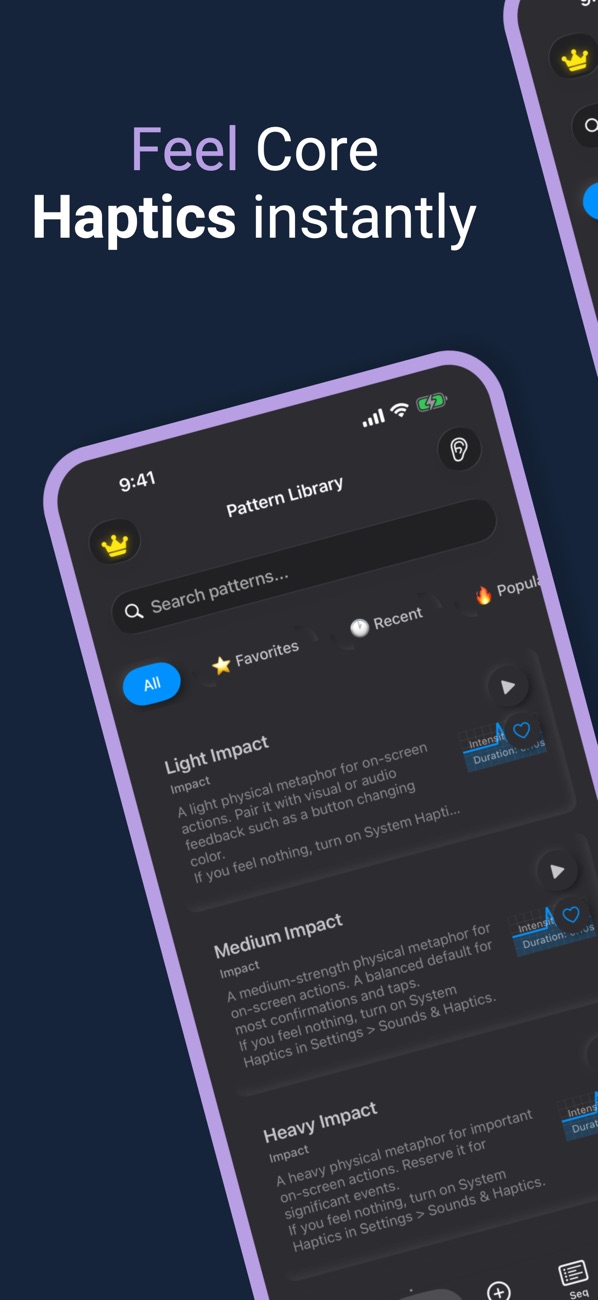
At the time of writing, its App Store listing shows:
Free with an optional Premium tier, in Developer Tools and Utilities First released in December 2022 4 ratings in the US store, all 5 stars Supports iOS 17.0 and later
How the listing maps to this article:
| What the listing says | Where it's covered |
| --- | --- |
| "Impact (Light, Medium, Heavy, Rigid, Soft)", "Notifications (Success, Error, Warning)", "Selection feedback" | UIKit generators and SwiftUI sensoryFeedback (sections 2–3) |
| "Rhythm patterns (Heartbeat, Double/Triple Tap, Tick Tock)", "Game patterns (Explosion…)" | Core Haptics events, sharpness and parameter curves (section 5) |
| "Adjust intensity and sharpness" / "Custom Pattern Creator" | CHHapticEventParameter values (section 5) |
| "Code Generation… UIKit, SwiftUI, Combine, Async/Await" | System feedback stays UIKit or SwiftUI; custom patterns use Core Haptics (sections 2–6) |
| "AHAP - Import a haptic file. Exporting an AHAP file is Premium." | playPattern(from:), CHHapticPattern(contentsOf:), exportDictionary() (section 6) |
| "Test haptic feedbacks instantly with play, loop, a long test, and speed controls" / "Speed control (0.5x, 1x, 2x)" | CHHapticAdvancedPatternPlayer with loopEnabled and playbackRate (section 7) |
| "Record and audio - Tap a rhythm"; release notes: "Tap the timeline for up to 4 seconds" | Tap timestamps → transient events (section 7) |
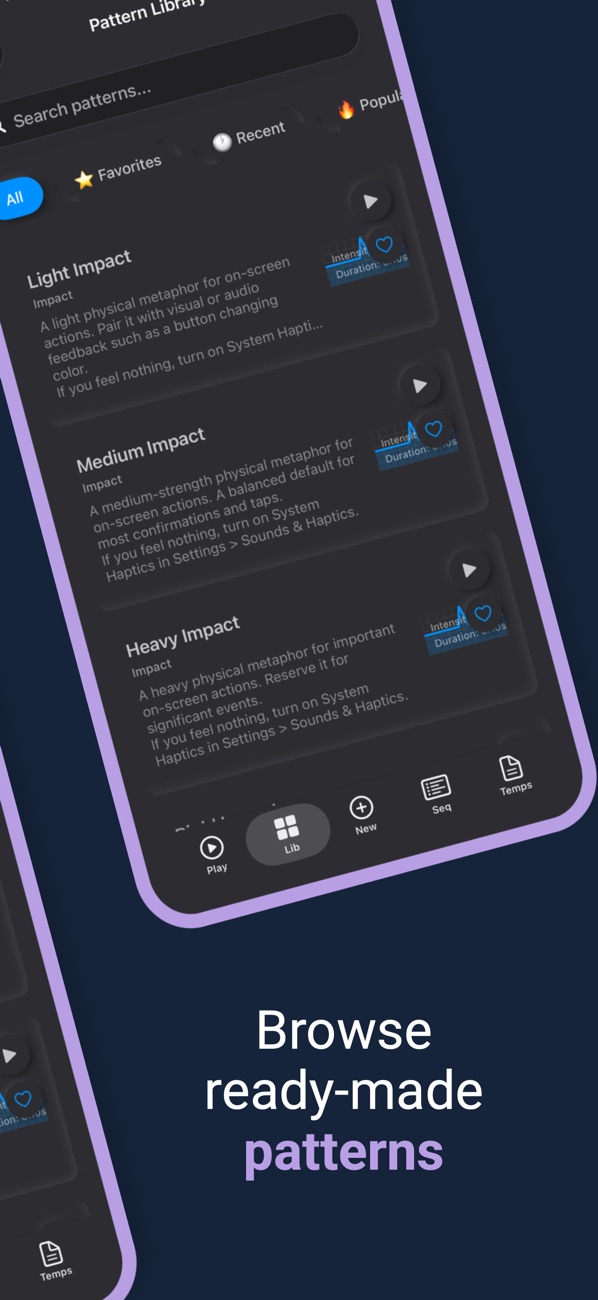
The listing also mentions widgets, Control Center and Siri support for replaying the last pattern, and a "Tell them apart" mode that plays success, warning and error back to back. That last one is my favourite design exercise. If your app's success and error haptics can't be told apart with your eyes closed, they aren't doing their job.
9. Before you ship haptics: a checklist
- Use system feedback first. Core Haptics only for genuinely custom patterns.
- Every haptic has a meaning. Selection, impact, success and error are used consistently across the app.
prepare()is called ahead of latency-sensitive feedback.- There's a hardware check.
supportsHapticsgates custom features; the app is fine on iPad and the Simulator. - The engine survives interruptions.
stoppedHandlerandresetHandlerare implemented and tested by backgrounding mid-pattern. - Haptics are paired with something visible or audible. Never use a haptic as the only signal: some users turn System Haptics off, and some devices don't have them.
- Patterns are short and sparse. Constant buzzing is fatiguing and drains battery.
- iOS 27 readiness. Move to
UIImpactFeedbackGenerator(style:view:)where you can (iOS 17.5+). - Test on several iPhone models. The Taptic Engine differs, and so does the feel.
Wrapping up
Good haptics are a vocabulary, not decoration. Lean on the system generators and SwiftUI's sensoryFeedback for everyday UI. Reach for Core Haptics when you need rhythm, shape or texture, and manage its engine carefully. Use AHAP when patterns need to travel between people and tools. And always test with your fingers, not just your eyes.
Try the app, or explore my other work:
Haptics Explorer (iOS): https://apps.apple.com/us/app/haptics-explorer/id1660403082 All of my free iOS apps: https://apps.apple.com/us/developer/alok-singh/id1508795536 My portfolio: https://bestlatestapps.com/alok/
What's the best haptic you've felt in someone else's app? Tell me in the comments. I collect good examples.
— Alok Kumar Singh
Originally published at <https://bestlatestapps.com/blog/a-practical-guide-to-ios-haptics/>*