Originally published at https://bestlatestapps.com/blog/building-a-hashtag-copier-for-ios/
How to normalise tags so they actually work, model bundled categories with user edits, copy to the pasteboard without tripping privacy prompts, and redesign a "copy 30 tags" app now that Instagram allows five

Hashtags Creator was one of my first App Store apps. The idea was simple: pick a category, and a list of popular hashtags is copied and ready to paste into Instagram. You can customise the lists, delete tags that don't fit, and copy them in one tap.
It's a small utility, but it's a good lens on three things every iOS developer runs into sooner or later. The first is text that has rules: a hashtag with a space or a $ in it silently stops being a hashtag. The second is the pasteboard, which has become one of iOS's most privacy-sensitive APIs. The third is platform rules that change under you: in December 2025, Instagram announced it would limit posts and reels to five hashtags, down from 30. Overnight, an app built around copying 30 tags needed a new design.
This article covers all three, with Swift that I've checked against Apple's documentation, and Instagram's rule taken from its own Help Center. Where I'm describing how I'd build something rather than how the shipped app works, I say so.
1. Normalise tags so they actually work
Instagram's Help Center is explicit: "Numbers are allowed in hashtags. However, spaces and special characters, like $ or %, won't work." Users type all sorts of things into a tag editor, like #Travel Photography, sunset!! or #café. So every tag should pass through one normaliser before it's stored or copied:
import Foundation

enum Hashtag {
    /// Turns user input into a usable tag, or nil if nothing usable remains.
    /// "Travel Photography!" -> "#travelphotography", "#café" -> "#café", "$CODEBLOCK0quot; -> nil
    static func normalize(_ raw: String) -> String? {
        let body = raw
            .trimmingCharacters(in: .whitespacesAndNewlines)
            .drop(while: { $0 == "#" })                        // tolerate a typed "#"
            .filter { $0.isLetter || $0.isNumber || $0 == "_" } // letters in any script, digits, underscore
            .lowercased()
        guard !body.isEmpty, body.contains(where: \.isLetter) else { return nil }  // "#2024" alone is rarely useful
        return "#" + body
    }

    /// Splits pasted text like "#a #b, c\n#d" into clean, de-duplicated tags, keeping order.
    static func parse(_ text: String) -> [String] {
        var seen = Set<String>()
        return text
            .components(separatedBy: CharacterSet.whitespacesAndNewlines.union(.init(charactersIn: ",;")))
            .compactMap(normalize)
            .filter { seen.insert($0).inserted }
    }
}
Three decisions worth explaining:
Character.isLetter instead of [a-z]. Hashtags work in Hindi, Japanese and Arabic, and an ASCII-only filter would quietly delete them. Swift's Character properties are Unicode-aware.
Lowercase for de-duplication. #Travel and #travel are the same tag to the platform, and keeping both wastes a slot. If you want to keep readable casing, like #TravelTips, store the display form and de-duplicate on the lowercased form.
Allowing underscores. These are widely used in tags. Instagram's help page only calls out spaces and symbols like $ and %, so test any other character you allow.
2. Bundled categories plus the user's edits
The listing promises "customize your lists, delete irrelevant tags". The clean way to model that is bundled defaults + a per-user overlay. You can then ship updated categories in an app update without wiping anyone's edits:
import Foundation

struct TagCategory: Codable, Identifiable, Hashable {
    let id: String              // stable: "travel", "food", "fitness"
    var name: String
    var tags: [String]
}

/// What the user changed, keyed by category id.
struct UserEdits: Codable {
    var added: [String: [String]] = [:]
    var removed: [String: Set<String>] = [:]
    var order: [String: [String]] = [:]     // optional manual ordering
}

final class TagLibrary: ObservableObject {
    @Published private(set) var categories: [TagCategory] = []
    @Published var edits = UserEdits() { didSet { save() } }

    private let editsURL = URL.applicationSupportDirectory.appending(path: "tag-edits.json")

    init() {
        let url = Bundle.main.url(forResource: "categories", withExtension: "json")!
        categories = (try? JSONDecoder().decode([TagCategory].self, from: Data(contentsOf: url))) ?? []
        if let data = try? Data(contentsOf: editsURL) {
            edits = (try? JSONDecoder().decode(UserEdits.self, from: data)) ?? UserEdits()
        }
    }

    /// Defaults minus removals, plus additions, in the user's order if they set one.
    func tags(for category: TagCategory) -> [String] {
        let removed = edits.removed[category.id] ?? []
        var merged = category.tags.filter { !removed.contains($0) } + (edits.added[category.id] ?? [])
        if let order = edits.order[category.id] {
            merged.sort { (order.firstIndex(of: $0) ?? .max) < (order.firstIndex(of: $1) ?? .max) }
        }
        return merged
    }

    func remove(_ tag: String, from category: TagCategory) {
        edits.added[category.id]?.removeAll { $0 == tag }
        edits.removed[category.id, default: []].insert(tag)
    }

    func add(_ raw: String, to category: TagCategory) {
        for tag in Hashtag.parse(raw) where !tags(for: category).contains(tag) {
            edits.removed[category.id]?.remove(tag)
            edits.added[category.id, default: []].append(tag)
        }
    }

    private func save() {
        try? FileManager.default.createDirectory(at: editsURL.deletingLastPathComponent(),
                                                 withIntermediateDirectories: true)
        try? JSONEncoder().encode(edits).write(to: editsURL, options: .atomic)
    }
}
The overlay is tiny, a few kilobytes of JSON. It also survives any content update, because the edits refer to stable category IDs and tag strings rather than to positions in a list.
3. An editable list in SwiftUI
With the library in place, the editing screen is mostly built-in SwiftUI behaviour: swipe to delete, an EditButton for reordering, and a field that accepts one tag or a pasted batch.
import SwiftUI

struct CategoryEditor: View {
    @ObservedObject var library: TagLibrary
    let category: TagCategory
    @State private var newTag = ""

    var body: some View {
        List {
            Section {
                HStack {
                    TextField("Add tags (space or comma separated)", text: $newTag)
                        .textInputAutocapitalization(.never)
                        .autocorrectionDisabled()
                        .onSubmit(addTags)
                    Button("Add", action: addTags).disabled(Hashtag.parse(newTag).isEmpty)
                }
            }
            Section("\(library.tags(for: category).count) tags") {
                ForEach(library.tags(for: category), id: \.self) { tag in
                    Text(tag).textSelection(.enabled)
                        .swipeActions {
                            Button("Delete", role: .destructive) { library.remove(tag, from: category) }
                        }
                }
                .onMove { from, to in
                    var current = library.tags(for: category)
                    current.move(fromOffsets: from, toOffset: to)
                    library.edits.order[category.id] = current
                }
            }
        }
        .navigationTitle(category.name)
        .toolbar { EditButton() }
    }

    private func addTags() { library.add(newTag, to: category); newTag = "" }
}
A note on versions. The shipped app supports iOS 12, which predates SwiftUI, so an app with that deployment target needs UIKit for its main screens. The SwiftUI here is the approach I'd use today; the model in section 2 works unchanged under either.
4. Copying to the pasteboard, carefully
Copying is one line, UIPasteboard.general.string = text, but setItems(_:options:) (iOS 10+) gives you two privacy options worth knowing about:
import UIKit
import UniformTypeIdentifiers

enum Clipboard {
    static func copy(_ tags: [String], expiresAfter seconds: TimeInterval? = nil, localOnly: Bool = false) {
        let text = tags.joined(separator: " ")
        var options: [UIPasteboard.OptionsKey: Any] = [:]
        if localOnly { options[.localOnly] = true }                 // don't sync via Universal Clipboard
        if let seconds { options[.expirationDate] = Date.now.addingTimeInterval(seconds) }

        UIPasteboard.general.setItems([[UTType.plainText.identifier: text]], options: options)
        UINotificationFeedbackGenerator().notificationOccurred(.success)
    }
}
.localOnly keeps the item off the user's other devices. For hashtags this hardly matters. For anything sensitive, like a one-time code, it should be the default.
.expirationDate makes the system clear the item later. It's useful when you copy something temporary and don't want it hanging around the clipboard all day.
Always confirm the copy. A haptic plus a brief "Copied 5 tags" banner. With no visual change, users tap "Copy" three times to be sure.
5. Reading the pasteboard: privacy prompts and how to avoid them
Writing to the pasteboard is silent. Reading it is not. Since iOS 14 the system shows a banner when an app reads another app's pasteboard content, and since iOS 16 a programmatic read without a clear user action triggers a permission alert. Apple's UIPasteboard documentation lists the properties you can use to avoid those prompts when the user hasn't shown intent, such as hasStrings, along with the pattern-detection methods.
So, for an "import tags from clipboard" feature:
import SwiftUI
import UniformTypeIdentifiers

struct ImportFromClipboard: View {
    @ObservedObject var library: TagLibrary
    let category: TagCategory

    var body: some View {
        // iOS 16+: the system paste button is user intent by definition, so there's no alert.
        PasteButton(payloadType: String.self) { strings in
            library.add(strings.joined(separator: " "), to: category)
        }
        .labelStyle(.titleAndIcon)
    }
}

// UIKit equivalent (iOS 16+): UIPasteControl, configured as the target of a paste action.
// To merely decide whether to *show* an import option, check
// UIPasteboard.general.hasStrings, which doesn't read the contents.
The design rule I follow: never read the pasteboard on launch or on appear. Plenty of apps once did that to "helpfully" detect a copied link, and the iOS 14 banner made it visible to everyone. Read only in response to a tap, and preferably through PasteButton or UIPasteControl, which carry the user's intent with them.
6. When the platform changes the rules: five hashtags
This is the part of the article I didn't expect to write. Instagram's Help Center now says: "You can use up to 5 tags on a post. If you include more than 5 tags on a single photo/video, your comment won't post." Instagram announced the change in December 2025, saying that "using fewer (up to 5), more targeted hashtags rather than many generic ones" helps performance. (Meta's developer documentation for publishing through its API still listed 30 when I checked. That's for scheduling tools, not for someone pasting into the app.)
For a hashtag app, that changes the core interaction from "copy the whole category" to "choose your five":
struct PickFive: View {
    let tags: [String]
    @State private var picked: [String] = []
    static let limit = 5

    var body: some View {
        List(tags, id: \.self) { tag in
            Button {
                if let i = picked.firstIndex(of: tag) { picked.remove(at: i) }
                else if picked.count < Self.limit { picked.append(tag) }
            } label: {
                HStack {
                    Text(tag)
                    Spacer()
                    if let i = picked.firstIndex(of: tag) { Text("\(i + 1)").bold() }   // show pick order
                }
            }
            .disabled(picked.count >= Self.limit && !picked.contains(tag))
        }
        .safeAreaInset(edge: .bottom) {
            Button("Copy \(picked.count) of \(Self.limit)") { Clipboard.copy(picked) }
                .buttonStyle(.borderedProminent)
                .disabled(picked.isEmpty)
                .padding()
        }
        .sensoryFeedback(.selection, trigger: picked)
    }
}
Lessons that apply well beyond hashtags:
Keep platform limits in one constant, ideally one you can update from a small remote config, not scattered as 30s through the code.
Make the limit visible. "Copy 3 of 5" teaches the rule without a tutorial.
Lean into the new guidance. "Fewer, more specific tags" is a better product anyway. A category list of the 50 most generic tags is now the wrong default; the approach I'd use puts specific, niche tags first.
7. Real-world example: Hashtags Creator
All of this is grounded in Hashtags Creator. The code above is the approach I'd use, written for this article, not the app's source.
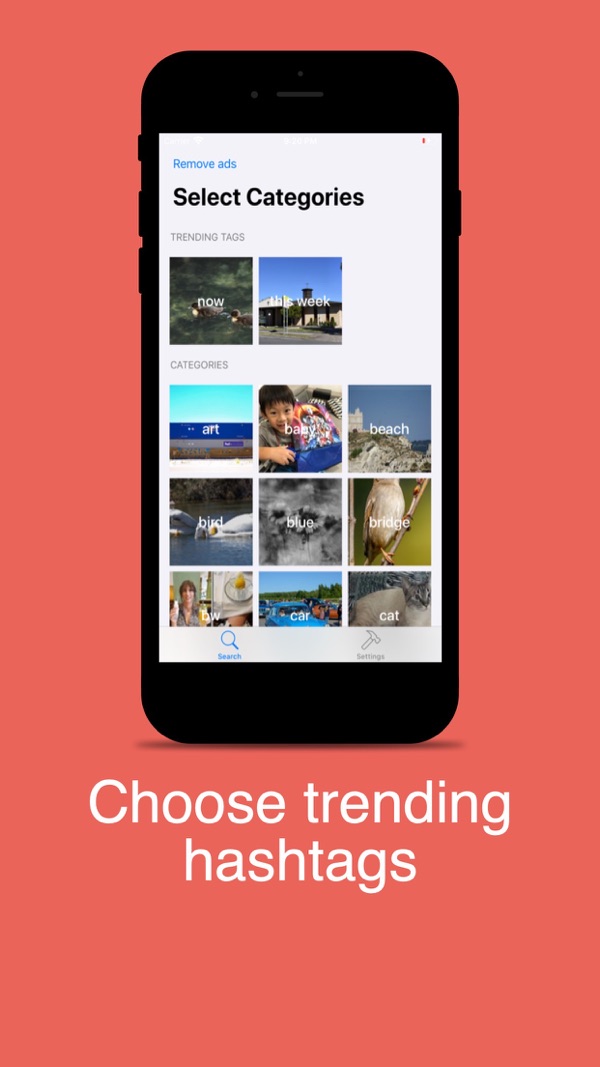
At the time of writing, its App Store listing shows:
Free, in Social Networking and Photo & Video First released in July 2020 2 ratings in the US store, both 5 stars Supports iOS 12.0 and later
How the listing maps to this article:
| What the listing says | Where it's covered | | --- | --- | | "most popular tags that could help you gain likes and followers" | Bundled categories (section 2) | | "You can customize your lists, delete irrelevant tags" | User-edit overlay and an editable list (sections 2–3) | | "copy and paste tags quickly" | Pasteboard writes with options (section 4) | | "Just select your category and tags are copied and ready to get posted in Instagram" | The copy flow, and the five-tag redesign (sections 4 and 6) |
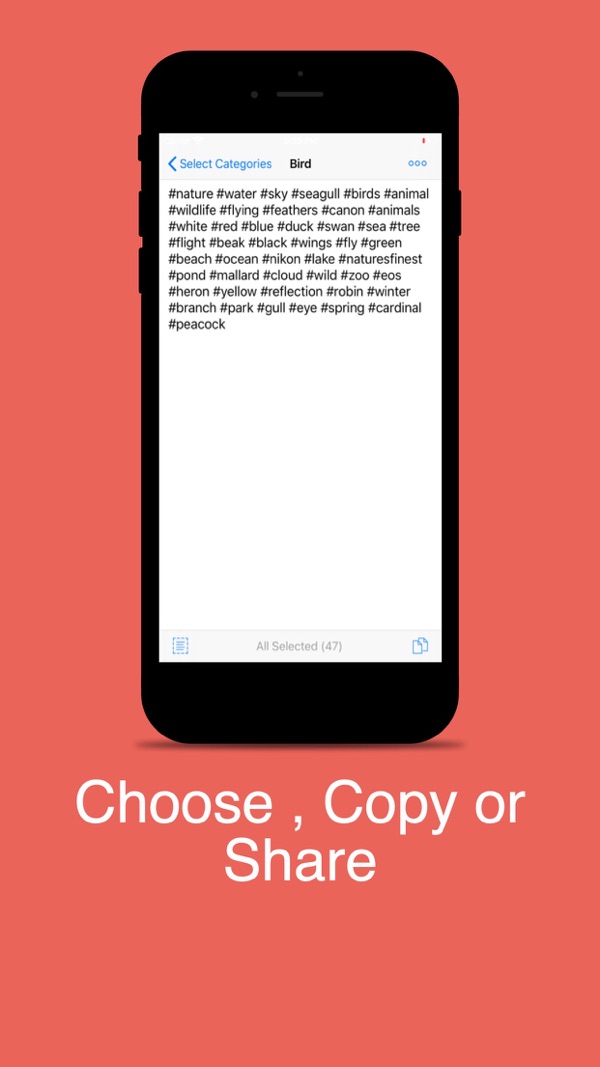
Note that the listing's "copy a whole category" flow was written when Instagram allowed 30 tags. Section 6 is how I'd adapt it.
8. Before you ship a text-and-clipboard utility: a checklist
- Every tag passes through one normaliser, which handles non-Latin scripts, emoji input and pasted batches.
- De-duplication is case-insensitive.
- User edits live in an overlay, so content updates never wipe them.
- There's no pasteboard read on launch or on appear. Imports use
PasteButtonorUIPasteControl. - Copies are confirmed with haptics and a visible message.
- Platform limits are a single, updatable constant, and the UI shows them.
- Test the real destination. Paste into Instagram (or wherever you target) on a current build, because platform rules move.
- Accessibility. VoiceOver reads tags sensibly; consider camel-casing display forms like
#TravelTipsfor readability.
Wrapping up
Tiny utilities are where craft shows. Clean the input, respect the clipboard and design for the rules as they are today, not as they were when you shipped. Hashtags Creator started as a "copy 30 tags" app. Today, the most useful version of it is a "help me choose five good ones" app, and that's a better product.
Try the app, or explore my other work:
Hashtags Creator (iOS): https://apps.apple.com/us/app/hashtags-creator/id1522156509 All of my free iOS apps: https://apps.apple.com/us/developer/alok-singh/id1508795536 My portfolio: https://bestlatestapps.com/alok/
Has a platform rule change ever forced a redesign of your app? Tell me about it in the comments.
— Alok Kumar Singh
Originally published at <https://bestlatestapps.com/blog/building-a-hashtag-copier-for-ios/>