Originally published at https://bestlatestapps.com/blog/building-a-live-ios-component-catalogue/
One registry for every component, hosting UIKit inside SwiftUI with UIViewRepresentable, wrapping the system pickers, comparing UIKit and SwiftUI versions on one screen, tag filters, search, favourites and recently viewed, and keeping copyable snippets honest

Every iOS developer has done this: you need a segmented control, or a date picker in compact style, or a blurred toolbar, and you can't remember exactly how it looks or what the defaults are. So you open a scratch project, type the code, run the simulator and squint. Then you do it again a month later for a different control.
Catalog - UI is my answer to that loop: a reference app where you can browse and try iOS UI components in one place. It includes controls, pickers and views in UIKit, parallel demos for key SwiftUI components, live demos, copyable code snippets, tag filters, search, favourites and recently viewed, and no account.
A catalogue app is also a surprisingly good architecture exercise. You need a data model that scales to dozens of components, a way to host UIKit views inside SwiftUI (or the other way round), wrappers for the system pickers that are really view controllers, and a way to make sure the code you let people copy actually matches what the demo does. This article covers how I'd build each of those, with APIs checked against Apple's documentation.
1. One registry to rule them all
The catalogue is driven by data, not by a giant switch statement. Each component is one value that knows its name, its tags, how to build its demos and what code to show:
import SwiftUI
import UIKit

enum CatalogTag: String, CaseIterable, Codable {
    case uiKit = "UIKit", controls = "Controls", views = "Views", pickers = "Pickers", swiftUI = "SwiftUI"
}

struct CatalogItem: Identifiable {
    let id: String                              // stable: "slider", "date-picker"
    let title: String
    let summary: String
    let tags: Set<CatalogTag>
    let uiKitDemo: (() -> UIView)?              // nil if SwiftUI-only
    let swiftUIDemo: (() -> AnyView)?           // nil if UIKit-only
    let snippetFiles: [String]                  // resource names, e.g. ["Slider.UIKit", "Slider.SwiftUI"]
}

enum Catalog {
    static let all: [CatalogItem] = [
        CatalogItem(
            id: "slider", title: "Slider",
            summary: "Choose a value from a continuous range.",
            tags: [.uiKit, .controls, .swiftUI],
            uiKitDemo: {
                let slider = UISlider()
                slider.minimumValue = 0; slider.maximumValue = 100; slider.value = 40
                slider.minimumTrackTintColor = .systemIndigo
                return slider
            },
            swiftUIDemo: { AnyView(SliderDemo()) },
            snippetFiles: ["Slider.UIKit", "Slider.SwiftUI"]
        ),
        // … buttons, menus, segmented controls, switches, steppers, text fields, search bars …
    ]
}

private struct SliderDemo: View {
    @State private var value = 40.0
    var body: some View {
        Slider(value: $value, in: 0...100) { Text("Value") }.tint(.indigo)
    }
}
Adding a component is now one entry, and every screen (list, search, favourites, detail) works from this one array. The uiKitDemo and swiftUIDemo closures keep construction lazy, so nothing is built until you open it.
2. Hosting UIKit demos in a SwiftUI shell
I'd write the shell (navigation, lists, search) in SwiftUI and host UIKit demos inside it. UIViewRepresentable (iOS 13+) does the bridging, and iOS 16's sizeThatFits(_:uiView:context:) finally lets a UIKit view tell SwiftUI how big it wants to be:
import SwiftUI

struct UIKitDemoHost: UIViewRepresentable {
    let make: () -> UIView

    func makeUIView(context: Context) -> UIView { make() }
    func updateUIView(_ uiView: UIView, context: Context) {}

    // iOS 16+: respect the width SwiftUI offers, and use the view's own fitting height.
    func sizeThatFits(_ proposal: ProposedViewSize, uiView: UIView, context: Context) -> CGSize? {
        let width = proposal.width ?? UIView.layoutFittingExpandedSize.width
        let fitted = uiView.systemLayoutSizeFitting(
            CGSize(width: width, height: UIView.layoutFittingCompressedSize.height),
            withHorizontalFittingPriority: .required,
            verticalFittingPriority: .fittingSizeLevel)
        return CGSize(width: width, height: max(fitted.height, uiView.intrinsicContentSize.height))
    }
}
Without sizeThatFits, many UIKit controls inside SwiftUI either collapse to zero height or stretch to fill everything. It's the most common "why does my bridged view look wrong" bug, and a catalogue shows it on every screen.
If your shell is UIKit instead, the mirror image is UIHostingController (iOS 13+) for embedding the SwiftUI demos. Both directions are first-class.
3. UIKit and SwiftUI, side by side
"Compare UIKit and SwiftUI side by side" is the feature I use most myself. With the registry and host in place, the detail screen is a simple two-up layout with labelled panes:
struct ComponentDetail: View {
    let item: CatalogItem
    @State private var showCode = false

    var body: some View {
        ScrollView {
            VStack(alignment: .leading, spacing: 24) {
                Text(item.summary).foregroundStyle(.secondary)

                if let uiKit = item.uiKitDemo {
                    DemoPane(title: "UIKit") { UIKitDemoHost(make: uiKit) }
                }
                if let swiftUI = item.swiftUIDemo {
                    DemoPane(title: "SwiftUI") { swiftUI() }
                }
                Button("View code") { showCode = true }.buttonStyle(.bordered)
            }
            .padding()
        }
        .navigationTitle(item.title)
        .sheet(isPresented: $showCode) { SnippetSheet(files: item.snippetFiles) }
        .onAppear { RecentlyViewed.shared.record(item.id) }
    }
}

struct DemoPane<Content: View>: View {
    let title: String
    @ViewBuilder var content: Content
    var body: some View {
        VStack(alignment: .leading, spacing: 8) {
            Text(title).font(.caption.weight(.semibold)).foregroundStyle(.secondary)
            content
                .padding()
                .frame(maxWidth: .infinity)
                .background(.background.secondary, in: .rect(cornerRadius: 12))
        }
    }
}
Seeing them together teaches things documentation doesn't. A SwiftUI Slider picks up the accent colour, while UISlider has its own tint properties. And SwiftUI's Toggle and UIKit's UISwitch look the same, but they differ in how labels and accessibility are attached.
4. The pickers are view controllers, so wrap them properly
Colour, font and image pickers in UIKit aren't views; they're view controllers with delegates. UIColorPickerViewController (iOS 14), UIFontPickerViewController (iOS 13) and PHPickerViewController (iOS 14) all follow the same wrapping pattern, UIViewControllerRepresentable plus a coordinator:
import SwiftUI
import UIKit

struct UIKitColorPicker: UIViewControllerRepresentable {
    @Binding var color: Color

    func makeUIViewController(context: Context) -> UIColorPickerViewController {
        let picker = UIColorPickerViewController()
        picker.supportsAlpha = true
        picker.delegate = context.coordinator
        return picker
    }
    func updateUIViewController(_ vc: UIColorPickerViewController, context: Context) {
        vc.selectedColor = UIColor(color)
    }
    func makeCoordinator() -> Coordinator { Coordinator(self) }

    final class Coordinator: NSObject, UIColorPickerViewControllerDelegate {
        let parent: UIKitColorPicker
        init(_ parent: UIKitColorPicker) { self.parent = parent }

        // Called repeatedly while dragging (continuously == true) and once at the end.
        func colorPickerViewController(_ vc: UIColorPickerViewController,
                                       didSelect color: UIColor, continuously: Bool) {
            parent.color = Color(color)
        }
    }
}
The SwiftUI parallel is one line, ColorPicker("Tint", selection: $color) (iOS 14), which makes the comparison instructive. The same goes for images: PhotosPicker (iOS 16, PhotosUI) on the SwiftUI side versus PHPickerViewController on the UIKit side. Both run out of process and need no photo-library permission prompt, which is a detail worth surfacing in a reference app, because developers still add NSPhotoLibraryUsageDescription "just in case".
For the date picker demo, preferredDatePickerStyle (iOS 13.4) is the property to show off. .compact, .inline and .wheels are almost three different controls.
5. Code snippets that don't rot
A catalogue's worst failure is a snippet that doesn't match the demo, or doesn't compile. The approach I'd use is to make snippets real Swift files in the project, compiled as part of a build target, and load their text from the bundle at runtime:
Snippets/
  Slider.UIKit.swift        // compiled in a "Snippets" target; also copied as a resource
  Slider.SwiftUI.swift
struct SnippetSheet: View {
    let files: [String]
    @Environment(\.dismiss) private var dismiss

    var body: some View {
        NavigationStack {
            List(files, id: \.self) { name in
                Section(name.components(separatedBy: ".").last ?? name) {
                    let code = Self.load(name)
                    Text(code)
                        .font(.system(.footnote, design: .monospaced))
                        .textSelection(.enabled)
                    Button("Copy") { UIPasteboard.general.string = code }
                }
            }
            .navigationTitle("Code")
            .toolbar { Button("Done") { dismiss() } }
        }
    }

    static func load(_ name: String) -> String {
        guard let url = Bundle.main.url(forResource: name, withExtension: "swift.txt"),
              let text = try? String(contentsOf: url, encoding: .utf8) else { return "// Snippet missing" }
        return text
    }
}
The build setup: the .swift files compile in a small framework target, so a broken snippet breaks the build. A Run Script phase copies them into the app bundle as .swift.txt resources. Then:
Every snippet compiles, because the build proves it on every change.
The demo can call the same code. The uiKitDemo closure can call a function defined in the snippet file, so what you see is literally what you copy.
A unit test can assert that every CatalogItem has its snippet files in the bundle.
It's a little build plumbing for a lot of trust.
6. Tags, search, favourites and recently viewed
With everything in one registry, discovery features are a few lines each. Tags are a filter on a Set, search is a case-insensitive match, and favourites and recents are small ID lists in @AppStorage:
struct CatalogList: View {
    @State private var query = ""
    @State private var selectedTag: CatalogTag?
    @AppStorage("favorites") private var favoritesRaw = ""

    private var favorites: Set<String> { Set(favoritesRaw.split(separator: ",").map(String.init)) }

    private var results: [CatalogItem] {
        Catalog.all.filter { item in
            (selectedTag.map { item.tags.contains($0) } ?? true) &&
            (query.isEmpty || item.title.localizedStandardContains(query))
        }
    }

    var body: some View {
        NavigationStack {
            List(results) { item in
                NavigationLink(item.title) { ComponentDetail(item: item) }
                    .swipeActions { Button(favorites.contains(item.id) ? "Unfavorite" : "Favorite") { toggle(item.id) } }
            }
            .searchable(text: $query, prompt: "Search components")
            .toolbar {
                Menu("Filter") {
                    Button("All") { selectedTag = nil }
                    ForEach(CatalogTag.allCases, id: \.self) { tag in Button(tag.rawValue) { selectedTag = tag } }
                }
            }
            .navigationTitle("Catalog")
        }
    }

    private func toggle(_ id: String) {
        var set = favorites
        if !set.insert(id).inserted { set.remove(id) }
        favoritesRaw = set.sorted().joined(separator: ",")
    }
}

@MainActor
final class RecentlyViewed {
    static let shared = RecentlyViewed()
    private let key = "recentlyViewed"
    func record(_ id: String) {
        var ids = UserDefaults.standard.stringArray(forKey: key) ?? []
        ids.removeAll { $0 == id }
        ids.insert(id, at: 0)
        UserDefaults.standard.set(Array(ids.prefix(15)), forKey: key)
    }
}
Storing IDs, not titles or indices, means renaming a component or reordering the catalogue never breaks anyone's favourites. And "no account required" is a natural result: everything here is local.
7. The interesting new entry: WebView
The listing includes WebView among its views, and that entry now has a genuinely new SwiftUI side. For years, web content in SwiftUI meant wrapping WKWebView (iOS 8) in a UIViewRepresentable. Apple's current documentation lists a native SwiftUI WebView and a WebPage model in WebKit, both iOS 26:
import SwiftUI
import WebKit

struct WebDemo: View {
    var body: some View {
        if #available(iOS 26, *) {
            WebView(url: URL(string: "https://developer.apple.com")!)   // native SwiftUI (WebKit, iOS 26)
        } else {
            LegacyWebView(url: URL(string: "https://developer.apple.com")!)
        }
    }
}

struct LegacyWebView: UIViewRepresentable {
    let url: URL
    func makeUIView(context: Context) -> WKWebView {
        let web = WKWebView()
        web.load(URLRequest(url: url))
        return web
    }
    func updateUIView(_ uiView: WKWebView, context: Context) {}
}
This is exactly what a catalogue is for. The same component now has three entries worth comparing: UIKit WKWebView, the wrapped version, and the native SwiftUI view, each behind the right availability check.
8. Real-world example: Catalog - UI
This architecture comes from building Catalog - UI. The code above is the approach I'd use, written for this article, not a copy of the shipped source.
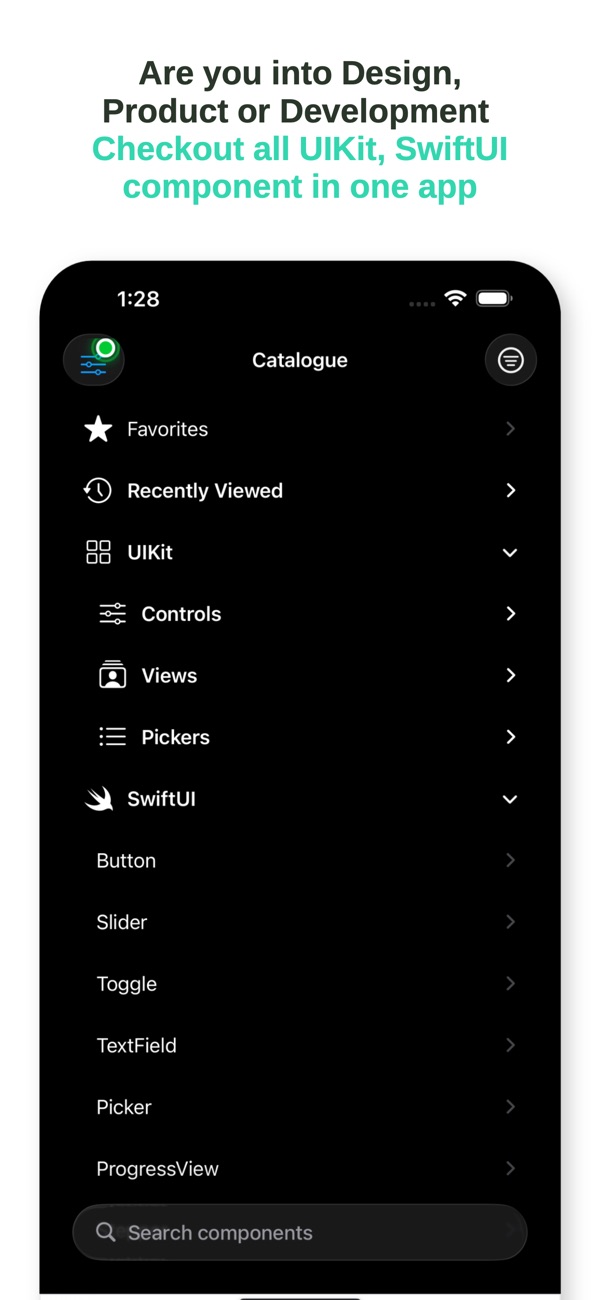
At the time of writing, its App Store listing shows:
Free, in Reference and Education First released in March 2023 2 ratings in the US store, averaging 3 stars Supports iOS 17.6 and later
How the listing maps to this article:
| What the listing says | Where it's covered |
| --- | --- |
| "Controls — Buttons, menus, segmented controls, sliders, switches…" | The registry (section 1) |
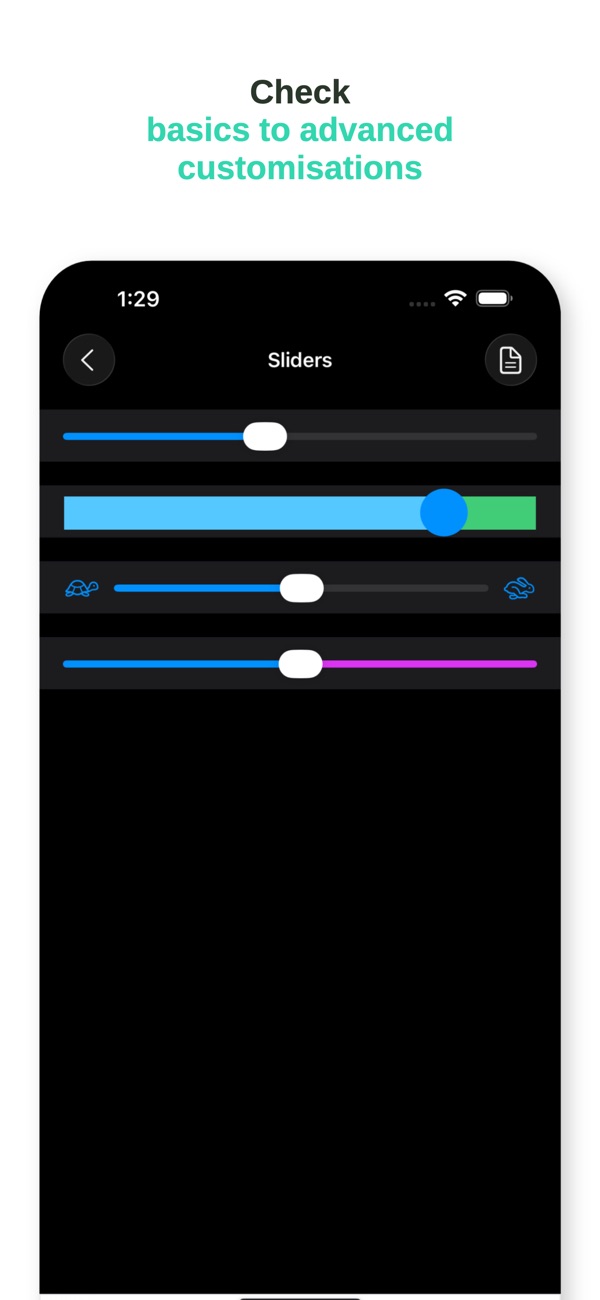
| "Tap any component to see a live demo" | UIKit hosting with sizeThatFits (section 2) |
| "Compare UIKit and SwiftUI side by side" / "Parallel demos for key SwiftUI components" | Two-pane detail (section 3) |
| "Pickers — Date picker, color picker, font picker, image picker, custom picker view" | View-controller pickers wrapped with coordinators (section 4) |
| "View code snippets and copy them into your project" | Compiled snippet files (section 5) |
| "Filter by tag…", "Search the full catalogue by name", "Favorites and… Recently Viewed" | Discovery features (section 6) |
| "Views — … visual effects, WebView" | WKWebView vs SwiftUI WebView (section 7) |
The rating average comes from only two ratings, so it doesn't say much. For a reference app, the feedback that matters most is "this snippet didn't work", and that's exactly what section 5 is designed to prevent.
9. Before you ship a reference or catalogue app: a checklist
- One registry drives every screen. There's no per-component switch statements.
- Bridged UIKit views size correctly.
sizeThatFitsis implemented and checked in Dynamic Type sizes. - Pickers use coordinators and report continuous changes where the API offers them.
- Snippets compile in CI, and a test checks every item has its snippet.
- Availability is explicit. iOS 26-only demos (like SwiftUI
WebView) are gated and labelled. - Favourites and recents store IDs, capped in size.
- Every demo works in Dark Mode, at large text sizes and with VoiceOver. A reference app should model good behaviour.
- No account and no tracking are needed for a reference tool.
Wrapping up
A component catalogue is a mirror held up to the platform. Building one forces you to understand how UIKit and SwiftUI really fit together: sizing across the bridge, view-controller pickers, availability and the small default differences that trip up real apps. Make the registry the single source of truth, make snippets compile and make every demo honest.
Try the app, or explore my other work:
Catalog - UI (iOS): https://apps.apple.com/us/app/catalog-ui/id6446035510 All of my free iOS apps: https://apps.apple.com/us/developer/alok-singh/id1508795536 My portfolio: https://bestlatestapps.com/alok/
Which component should every iOS catalogue include that most leave out? Tell me in the comments.
— Alok Kumar Singh
Originally published at <https://bestlatestapps.com/blog/building-a-live-ios-component-catalogue/>