Originally published at https://bestlatestapps.com/blog/building-a-low-latency-virtual-piano-and-drum-kit-on-ios-with-avaudioe/
Samplers for pitched instruments, a player-node pool for drums, a multi-touch keyboard that handles chords and glissandos, and note names for beginners
The test for a virtual instrument is brutal and immediate: tap a key, and the sound has to arrive with your finger, not after it. Play a chord and you expect three notes, not one. Drag your finger along the keyboard and you expect a glissando, not silence. Hit the snare four times quickly and you expect four hits, not one hit cut off three times.
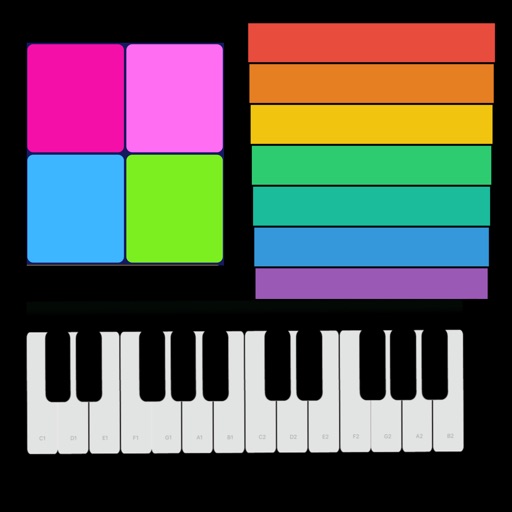
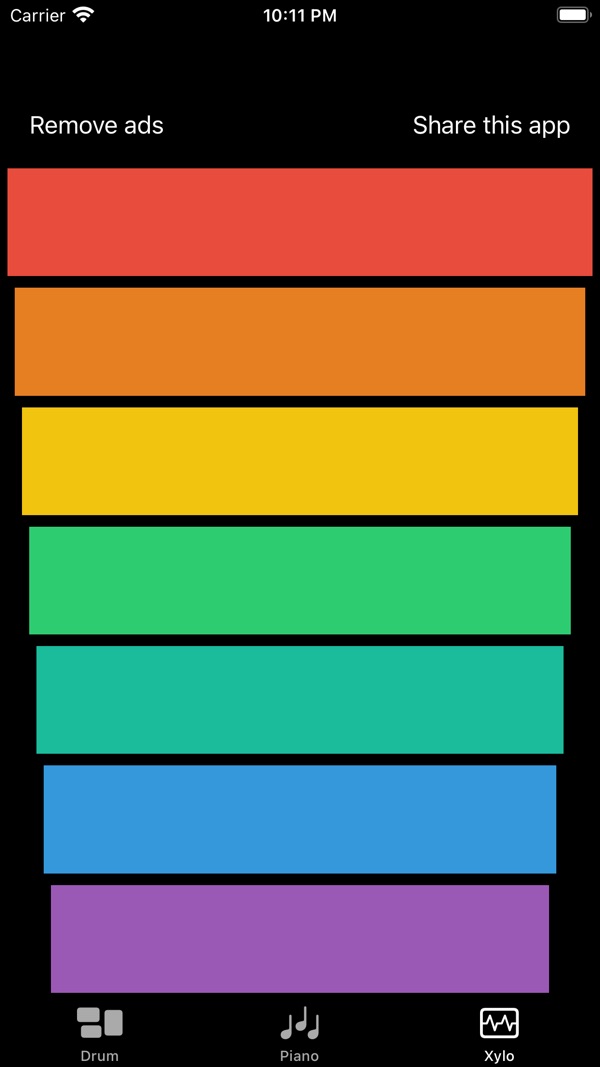
My app Drums n Piano puts a piano, a drum kit and a xylophone on your phone. The listing promises an instrument that "sounds real, just like the original instrument!", and it's also meant for learning: it teaches beginners "the names & positions of notes on the piano".
This article covers how I'd build the audio and touch parts of an app like that on iOS. That means configuring the session for low latency, using AVAudioUnitSampler for pitched instruments, a pool of AVAudioPlayerNodes for one-shot drum samples, a custom multi-touch keyboard view, and labelling notes for learners. The app supports iOS 12 and later, so the touch layer is UIKit, and I'll explain why that's the right call even today. API names and availability are checked against Apple's documentation, and this is the approach I'd use rather than a tour of the app's source.
1. The three things a virtual instrument must get right
- Latency. The gap between touch and sound. Part of it is the audio buffer, and part is your own code: loading a file on tap, or allocating while the user is playing.
- Polyphony. Several sounds at once: chords on the piano, overlapping cymbal and kick, a fast roll on the snare.
- Touch handling. Many fingers at once, sliding between keys, and no gesture delays.
None of these are hard individually. They get hard when the first prototype plays a sound file with AVAudioPlayer on each tap. That loads, decodes and allocates on the main thread, can't overlap itself, and has noticeably more delay than the engine-based approaches below.
2. Session setup for an instrument
import AVFoundation

enum InstrumentSession {
    static func activate() throws {
        let session = AVAudioSession.sharedInstance()
        // .playback: the instrument IS the app, so play even with the Silent switch on.
        // .mixWithOthers: let people play along with music from another app.
        try session.setCategory(.playback, mode: .default, options: [.mixWithOthers])
        try session.setPreferredIOBufferDuration(0.005)   // ask for ~5 ms; the system decides
        try session.setActive(true)
        print("IO buffer: \(session.ioBufferDuration * 1000) ms, rate: \(session.sampleRate) Hz")
    }
}
Two decisions here deserve a sentence each:
.playback vs .ambient. .ambient respects the Silent switch, which suits a game's background music. For an instrument, silence when the switch is on looks like a broken app, so I use .playback.
A small preferred buffer reduces output latency. It's a preference: read back ioBufferDuration to see what you actually got, and expect Bluetooth headphones to add delay you can't remove. Wired headphones or the built-in speaker are best for playing in time.
3. Pitched instruments: AVAudioUnitSampler
For piano and xylophone, you don't want one audio file per tap. You want a sampler: an instrument that receives MIDI-style "note on/off" messages and plays the right sample, pitch-shifting between recorded notes if needed. AVAudioUnitSampler (iOS 8+) is Apple's sampler, wrapped as an engine node.
import AVFoundation

final class PitchedInstrument {
    private let engine: AVAudioEngine
    private let sampler = AVAudioUnitSampler()

    init(engine: AVAudioEngine) {
        self.engine = engine
        engine.attach(sampler)
        engine.connect(sampler, to: engine.mainMixerNode, format: nil)
    }

    /// Load a SoundFont (.sf2) or DLS bank shipped in the bundle.
    func loadSoundBank(named name: String, program: UInt8 = 0) throws {
        guard let url = Bundle.main.url(forResource: name, withExtension: "sf2") else {
            throw CocoaError(.fileNoSuchFile)
        }
        try sampler.loadSoundBankInstrument(
            at: url, program: program,
            bankMSB: UInt8(kAUSampler_DefaultMelodicBankMSB),
            bankLSB: UInt8(kAUSampler_DefaultBankLSB))
    }

    /// Or: load individual samples (e.g. one recording every few semitones).
    func loadSamples(_ urls: [URL]) throws {
        try sampler.loadAudioFiles(at: urls)
    }

    func noteOn(_ midi: UInt8, velocity: UInt8 = 100) {
        sampler.startNote(midi, withVelocity: velocity, onChannel: 0)
    }

    func noteOff(_ midi: UInt8) {
        sampler.stopNote(midi, onChannel: 0)
    }
}
Why this is the right tool:
Polyphony is built in. Ten fingers, ten notes. The sampler manages voices for you. Note-off is real. Releasing a key triggers the sample's release, as on a real piano, rather than a hard cut. Loading happens once, at launch or when the user switches instrument, never on the tap.
Where do the sounds come from? Either a SoundFont you have the rights to ship, or your own recordings, with one sample every few semitones loaded via loadAudioFiles(at:). Sample quality is the single biggest factor in "sounds real", and it's a licensing question as much as a technical one: check the licence of any sound bank before you bundle it.
4. Drums: preloaded buffers and a player-node pool
Drums are different. There's no pitch, every hit is a one-shot, and the same pad is hit repeatedly and fast. You could map drums onto a sampler (General MIDI percussion is exactly that), but a simple, very controllable approach is:
- Decode each drum sample into an
AVAudioPCMBufferonce, at launch. - Keep a small pool of
AVAudioPlayerNodes per pad. - On each hit, schedule the buffer on the next node in the pool, round-robin.
import AVFoundation

final class DrumKit {
    private let engine: AVAudioEngine
    private var buffers: [String: AVAudioPCMBuffer] = [:]
    private var pools: [String: [AVAudioPlayerNode]] = [:]
    private var nextIndex: [String: Int] = [:]
    private let voicesPerPad = 4     // how many overlapping hits per pad

    init(engine: AVAudioEngine) { self.engine = engine }

    /// Call once, before starting the engine.
    func load(pads: [String]) throws {
        for pad in pads {
            guard let url = Bundle.main.url(forResource: pad, withExtension: "caf") else {
                throw CocoaError(.fileNoSuchFile)
            }
            let file = try AVAudioFile(forReading: url)
            guard let buffer = AVAudioPCMBuffer(pcmFormat: file.processingFormat,
                                                frameCapacity: AVAudioFrameCount(file.length)) else {
                throw CocoaError(.fileReadCorruptFile)
            }
            try file.read(into: buffer)
            buffers[pad] = buffer

            pools[pad] = (0..<voicesPerPad).map { _ in
                let node = AVAudioPlayerNode()
                engine.attach(node)
                engine.connect(node, to: engine.mainMixerNode, format: buffer.format)
                return node
            }
            nextIndex[pad] = 0
        }
    }

    /// Call after engine.start().
    func startNodes() {
        pools.values.flatMap { $0 }.forEach { $0.play() }
    }

    func hit(_ pad: String, velocity: Float = 1.0) {
        guard let buffer = buffers[pad], let pool = pools[pad], let i = nextIndex[pad] else { return }
        let node = pool[i]
        nextIndex[pad] = (i + 1) % pool.count
        node.volume = velocity
        // .interrupts: if this voice is still ringing from 4 hits ago, restart it cleanly.
        node.scheduleBuffer(buffer, at: nil, options: .interrupts, completionHandler: nil)
    }
}
The whole setup:
let engine = AVAudioEngine()
let piano = PitchedInstrument(engine: engine)
let drums = DrumKit(engine: engine)

try InstrumentSession.activate()
try piano.loadSoundBank(named: "Piano")
try drums.load(pads: ["kick", "snare", "hihat-closed", "hihat-open", "crash", "tom-high", "tom-low"])
engine.prepare()
try engine.start()
drums.startNodes()
Why a pool? A single player node plays one schedule queue. Scheduling a new hit with .interrupts on a single node cuts the previous hit off, and that's audible on cymbals. With four voices per pad, four overlapping hits all ring naturally, and only the fifth recycles the oldest voice. Ship samples as uncompressed .caf or .wav so decoding at launch is quick and exact. They're short, so the size cost is small.
5. A multi-touch keyboard that feels like a keyboard
This is where many SwiftUI prototypes fall short. A Button per key fires on touch-up, which is far too late for an instrument. A DragGesture per key doesn't hand off to the next key when the finger slides. And coordinating several simultaneous fingers through SwiftUI gestures is awkward.
The direct approach is one UIKit view for the whole keyboard that tracks every UITouch itself:
import UIKit

final class KeyboardView: UIView {
    var firstMidi: UInt8 = 60           // C4
    var octaves = 2
    var onNoteOn: ((UInt8) -> Void)?
    var onNoteOff: ((UInt8) -> Void)?

    private var touchNotes: [ObjectIdentifier: UInt8] = [:]   // which finger holds which note

    override init(frame: CGRect) {
        super.init(frame: frame)
        isMultipleTouchEnabled = true      // essential: off by default
    }
    required init?(coder: NSCoder) { fatalError("init(coder:) is not supported") }

    // MARK: Touch tracking

    override func touchesBegan(_ touches: Set<UITouch>, with event: UIEvent?) {
        for t in touches { press(t) }
    }

    override func touchesMoved(_ touches: Set<UITouch>, with event: UIEvent?) {
        for t in touches {
            let id = ObjectIdentifier(t)
            let newNote = note(at: t.location(in: self))
            guard newNote != touchNotes[id] else { continue }    // still on the same key
            if let old = touchNotes[id] { onNoteOff?(old) }       // glissando: release old…
            touchNotes[id] = newNote
            if let n = newNote { onNoteOn?(n) }                   // …and press new
            setNeedsDisplay()
        }
    }

    override func touchesEnded(_ touches: Set<UITouch>, with event: UIEvent?) {
        for t in touches { release(t) }
    }

    override func touchesCancelled(_ touches: Set<UITouch>, with event: UIEvent?) {
        for t in touches { release(t) }     // never leave a note stuck on
    }

    private func press(_ t: UITouch) {
        guard let n = note(at: t.location(in: self)) else { return }
        touchNotes[ObjectIdentifier(t)] = n
        onNoteOn?(n)
        setNeedsDisplay()
    }

    private func release(_ t: UITouch) {
        if let n = touchNotes.removeValue(forKey: ObjectIdentifier(t)) { onNoteOff?(n) }
        setNeedsDisplay()
    }

    // MARK: Geometry

    private static let whiteOffsets: [UInt8] = [0, 2, 4, 5, 7, 9, 11]          // C D E F G A B
    private static let blackOffsets: [(after: Int, semitone: UInt8)] =
        [(0, 1), (1, 3), (3, 6), (4, 8), (5, 10)]                               // C# D# F# G# A#

    private var whiteKeyWidth: CGFloat { bounds.width / CGFloat(7 * octaves) }

    /// Black keys sit on top, so test them first.
    func note(at p: CGPoint) -> UInt8? {
        guard bounds.contains(p) else { return nil }
        let w = whiteKeyWidth
        if p.y < bounds.height * 0.6 {
            for octave in 0..<octaves {
                for (after, semitone) in Self.blackOffsets {
                    let x = CGFloat(octave * 7 + after + 1) * w - w * 0.3
                    if CGRect(x: x, y: 0, width: w * 0.6, height: bounds.height * 0.6).contains(p) {
                        return firstMidi + UInt8(octave * 12) + semitone
                    }
                }
            }
        }
        let index = Int(p.x / w)
        let octave = index / 7, step = index % 7
        return firstMidi + UInt8(octave * 12) + Self.whiteOffsets[step]
    }
}
The essential details:
isMultipleTouchEnabled = true. It's false by default, and without it you'll only ever get one finger.
Track notes per touch with ObjectIdentifier(touch). Each finger owns its note, so chords and glissandos work independently.
Handle touchesCancelled. A system gesture or an incoming call can cancel touches. If you don't release notes there, you get stuck notes.
Black keys are hit-tested first, because they're drawn on top.
On iOS 12 this is the only option, since SwiftUI needs iOS 13. Even on a SwiftUI app today, I'd wrap this view in a UIViewRepresentable. Touch handling for an instrument is one of the places where UIKit is still simply the better tool.
Drum pads follow the same idea in simpler form: a grid of rectangles, touchesBegan triggers hit(_:), and there's no note-off.
6. Teaching note names and positions
The listing describes the app as "teaching beginners the names & positions of notes on the piano". On the keyboard view, that's two small things: draw a label on each key, and let learners switch between naming systems.
enum NoteNaming: String, CaseIterable {
    case letters      // C D E F G A B
    case solfege      // Do Re Mi Fa Sol La Si

    static let letterNames = ["C", "C♯", "D", "D♯", "E", "F", "F♯", "G", "G♯", "A", "A♯", "B"]
    static let solfegeNames = ["Do", "Do♯", "Re", "Re♯", "Mi", "Fa", "Fa♯", "Sol", "Sol♯", "La", "La♯", "Si"]

    func name(for midi: UInt8, withOctave: Bool = true) -> String {
        let pitchClass = Int(midi) % 12
        let base = self == .letters ? Self.letterNames[pitchClass] : Self.solfegeNames[pitchClass]
        return withOctave ? "\(base)\(Int(midi) / 12 - 1)" : base      // MIDI 60 = C4
    }
}

// NoteNaming.letters.name(for: 60) == "C4"; NoteNaming.solfege.name(for: 64) == "Mi4"
In draw(_:), draw white-key labels near the bottom of each key and black-key labels only when a "show sharps" toggle is on; for beginners, too many labels is noise. Highlighting the pressed key matters more than any label. The immediate visual "this is the key you just played" is how position is learned.
7. Real-world example: Drums n Piano
This is the approach I'd use, and recommend, for Drums n Piano.
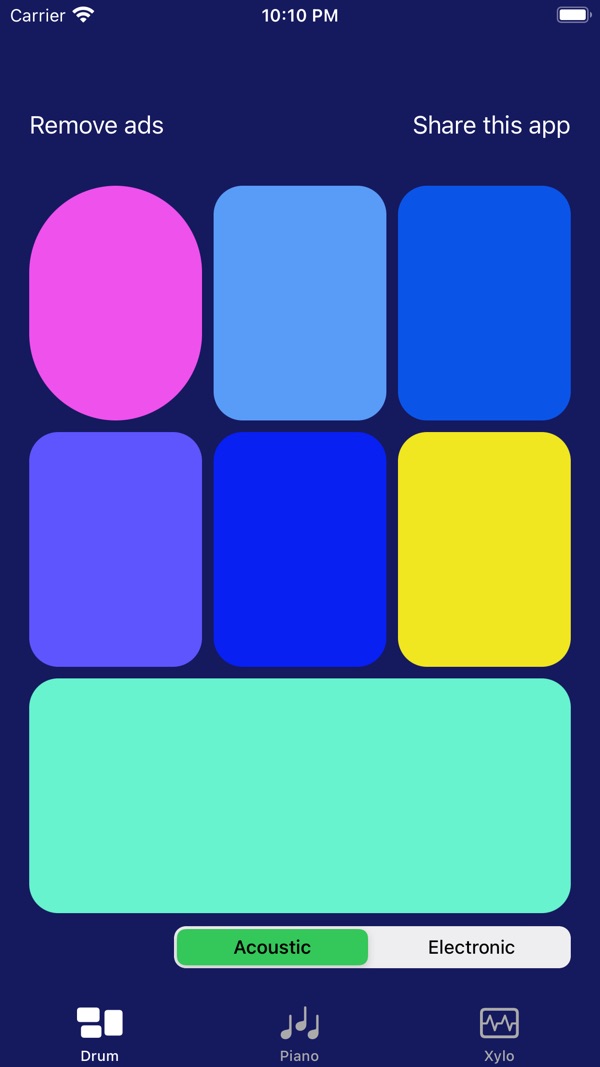
At the time of writing, its App Store listing shows:
Free, in Music and Entertainment First released in September 2022 9 ratings in the US store, averaging about 4.4 stars Supports iOS 12.0 and later
How the listing maps to this article:
| What the listing says | Where it's covered | | --- | --- | | "Simply play and learn the piano, drums or xylophone wherever you are" | A sampler per pitched instrument; a player-node pool for drums (sections 3–4) | | "This virtual app sounds real, just like the original instrument!" / "Premium sound quality" | Real samples loaded once, a low-latency session, natural note-off releases (sections 2–3) | | "Teaching beginners the names & positions of notes on the piano" | Note labels and pressed-key highlighting (section 6) | | "Play or learn your music chords" | Per-touch tracking with multi-touch enabled (section 5) |
The listing's audience is broad: "a music teacher, singer, songwriter, or beginner or joyful kid". That's a good reminder that kids mash several keys with their whole hand. A multi-touch view that never leaves a stuck note is worth more than any feature.
8. Before you ship a virtual instrument: a checklist
- Nothing loads on tap. Samples and sound banks load at launch or on instrument switch; taps only trigger notes.
- The session is
.playback(or a deliberate.ambient), with a small preferred buffer, and you've logged what you actually got. - Polyphony is tested. Ten-finger chords on the piano; rapid repeated hits on every drum pad.
- There are no stuck notes. Test cancelled touches, a phone call mid-chord, backgrounding mid-note and Control Center swipes.
isMultipleTouchEnabledis on, and each touch owns its note.- Glissando works: sliding across keys releases and presses notes as you go.
- Sample licences are cleared for everything you bundle.
- You've tested on real hardware with wired and Bluetooth audio, and the app tells users that wired is tighter.
Wrapping up
A virtual instrument is mostly preparation: decode everything up front, pick the right player for the job (a sampler for pitched instruments, a node pool for one-shots), keep the audio buffer small, and track every finger yourself. Get those right, and the sound arrives with the touch, which is all a player really asks for.
Play it, or explore my other apps:
Drums n Piano (iOS): https://apps.apple.com/us/app/drums-n-piano/id1642061667 All of my free iOS apps: https://apps.apple.com/us/developer/alok-singh/id1508795536 My portfolio: https://bestlatestapps.com/alok/
If you've built an instrument app and found a better way to handle touches or voices, tell me about it in the comments. I'm especially curious about anyone doing velocity from touch force or radius.
— Alok Kumar Singh
Originally published at <https://bestlatestapps.com/blog/building-a-low-latency-virtual-piano-and-drum-kit-on-ios-with-avaudioe/>