Originally published at https://bestlatestapps.com/blog/text-plus-audio-fully-offline/
Bundled recitation audio, verse-by-verse highlighting from a cue sheet, background playback, Now Playing controls and the interruptions you must handle, on an app that still supports iOS 11

Some apps are used in a very particular moment. A prayer app is opened in the morning, often before anything else, frequently by someone older who isn't interested in settings screens, and sometimes somewhere with no signal at all. It has to open instantly, play immediately and never ask for an account.
Hanuman Chalisa : Offline was the second app I published, in April 2020, one day after my Bible app. The Hanuman Chalisa is a devotional hymn to Lord Hanuman, attributed to the poet-saint Tulsidas. The app does two things: it shows the Chalisa in English-language script for reading, and it plays an audio recitation, all without an internet connection.
That combination, text plus audio that stay in step, is a pattern you'll find in language-learning apps, audiobooks with text, karaoke lyrics and guided meditations. This article walks through how I'd build it on iOS: bundling text and audio, a cue sheet for verse timing, AVAudioPlayer with a proper .playback session, highlighting the current verse, lock-screen controls through MPNowPlayingInfoCenter and MPRemoteCommandCenter, and the interruptions and route changes a real device throws at you. The app supports iOS 11 and later, so the code is UIKit-first and stays on long-established APIs. I'm describing the approach I'd use and recommend, not the app's exact source.
1. What "offline text plus audio" requires
Three requirements shape the design:
Zero network, zero setup. Everything ships in the app bundle. First launch is the same as the hundredth. Audio and text are one experience. When the recitation reaches a verse, that verse is highlighted and scrolled into view. When the user taps a verse, the audio jumps there. It behaves like a real audio app. It keeps playing with the screen locked, shows controls on the Lock Screen and in Control Center, pauses for a phone call, and stops when headphones are pulled out.
The first two are about your data model. The third is about respecting the system.
2. Bundle the content with a cue sheet
I keep the text and the timing together in one small JSON file in the bundle, next to the audio file:
{
  "title": "Hanuman Chalisa",
  "audio": "chalisa.m4a",
  "verses": [
    { "id": 1, "kind": "doha",  "start": 0.0,  "text": "…" },
    { "id": 2, "kind": "doha",  "start": 14.2, "text": "…" },
    { "id": 3, "kind": "chaupai", "start": 27.8, "text": "…" }
  ]
}
Each verse carries the time, in seconds, at which its recitation starts. That's the whole cue sheet. You produce it once, by listening with a waveform editor open, and it never changes unless the recording does.
import Foundation

struct Verse: Decodable {
    let id: Int
    let kind: String
    let start: TimeInterval
    let text: String
}

struct Recitation: Decodable {
    let title: String
    let audio: String
    let verses: [Verse]

    static func loadBundled(named name: String = "chalisa") throws -> Recitation {
        guard let url = Bundle.main.url(forResource: name, withExtension: "json") else {
            throw CocoaError(.fileNoSuchFile)
        }
        let recitation = try JSONDecoder().decode(Recitation.self, from: Data(contentsOf: url))
        // Cue sheets must be sorted; fail loudly in debug if someone edits one by hand.
        assert(zip(recitation.verses, recitation.verses.dropFirst()).allSatisfy { $0.start < $1.start })
        return recitation
    }

    /// Index of the verse being recited at `time` (binary search over start times).
    func verseIndex(at time: TimeInterval) -> Int {
        var low = 0, high = verses.count - 1, answer = 0
        while low <= high {
            let mid = (low + high) / 2
            if verses[mid].start <= time { answer = mid; low = mid + 1 } else { high = mid - 1 }
        }
        return answer
    }
}
A few practical notes:
AAC (.m4a) is the right format for a bundled spoken or sung recording: small, and decoded in hardware.
Keep the text as Unicode text, not images. It scales with Dynamic Type, it works with VoiceOver, and you can offer other scripts later from the same structure.
Binary search is overkill for 40-odd verses, but it costs nothing, and the same code works for a 300-chapter audiobook.
3. AVAudioPlayer and a session that keeps playing
For a single bundled file, AVAudioPlayer (available since iOS 2.2) is all you need. There's no engine graph and nothing to stream. What matters is the audio session category:
import AVFoundation

final class RecitationPlayer: NSObject, AVAudioPlayerDelegate {
    private(set) var player: AVAudioPlayer?
    var onFinish: (() -> Void)?

    func load(_ recitation: Recitation) throws {
        guard let url = Bundle.main.url(forResource: recitation.audio, withExtension: nil) else {
            throw CocoaError(.fileNoSuchFile)
        }
        let player = try AVAudioPlayer(contentsOf: url)
        player.delegate = self
        player.enableRate = true          // must be set before prepareToPlay() to allow rate changes
        player.prepareToPlay()
        self.player = player
    }

    func play() throws {
        let session = AVAudioSession.sharedInstance()
        // .playback: audio is central to the app; it plays with the Silent switch on
        // and, with the "audio" background mode, keeps going when the screen locks.
        try session.setCategory(.playback, mode: .spokenAudio, options: [])
        try session.setActive(true)
        player?.play()
    }

    func pause() { player?.pause() }

    func seek(to time: TimeInterval) {
        guard let player else { return }
        player.currentTime = max(0, min(time, player.duration))
    }

    func audioPlayerDidFinishPlaying(_ player: AVAudioPlayer, successfully flag: Bool) {
        try? AVAudioSession.sharedInstance().setActive(false, options: .notifyOthersOnDeactivation)
        onFinish?()
    }
}
Three details that matter more than they look:
.playback, not the default. The default category (.soloAmbient) is silenced by the ring/silent switch and stops when the screen locks. For a prayer app, both are bugs.
Add the background mode. In Xcode, enable Background Modes → "Audio, AirPlay, and Picture in Picture" (audio in UIBackgroundModes). Without it, .playback alone won't keep you alive after the screen locks.
The .spokenAudio mode (iOS 9+) is meant for continuous spoken audio. Per Apple's docs, your audio pauses rather than ducks when another app plays a short spoken prompt, such as a navigation instruction, and you can resume afterwards. A sung recitation sits somewhere between speech and music, so .default is a reasonable choice too. setCategory(_:mode:options:) is iOS 10+, so it's safe on an iOS 11 target.
4. Highlighting the current verse
To keep the text in step with the audio, poll currentTime a few times a second and move the highlight when the verse index changes. On iOS 11 I use a CADisplayLink (or a plain Timer) rather than anything newer:
import UIKit

final class RecitationViewController: UITableViewController {
    private let recitation: Recitation
    private let audio = RecitationPlayer()
    private var link: CADisplayLink?
    private var currentIndex = -1

    init(recitation: Recitation) {
        self.recitation = recitation
        super.init(style: .plain)
    }
    required init?(coder: NSCoder) { fatalError("init(coder:) is not supported") }

    override func viewDidLoad() {
        super.viewDidLoad()
        tableView.register(UITableViewCell.self, forCellReuseIdentifier: "verse")
        tableView.rowHeight = UITableView.automaticDimension
        try? audio.load(recitation)
    }

    func startPlayback() {
        try? audio.play()
        link = CADisplayLink(target: self, selector: #selector(tick))
        link?.preferredFramesPerSecond = 10     // plenty for text; saves battery
        link?.add(to: .main, forMode: .common)
    }

    func stopUpdates() {
        link?.invalidate(); link = nil
    }

    @objc private func tick() {
        guard let time = audio.player?.currentTime else { return }
        let index = recitation.verseIndex(at: time)
        guard index != currentIndex else { return }
        let previous = currentIndex
        currentIndex = index
        let rows = [previous, index].filter { $0 >= 0 }.map { IndexPath(row: $0, section: 0) }
        tableView.reloadRows(at: rows, with: .fade)
        tableView.scrollToRow(at: IndexPath(row: index, section: 0), at: .middle, animated: true)
    }

    // Tap a verse to jump the audio there.
    override func tableView(_ tableView: UITableView, didSelectRowAt indexPath: IndexPath) {
        audio.seek(to: recitation.verses[indexPath.row].start)
        tableView.deselectRow(at: indexPath, animated: true)
    }

    override func tableView(_ tableView: UITableView, numberOfRowsInSection section: Int) -> Int {
        recitation.verses.count
    }

    override func tableView(_ tableView: UITableView, cellForRowAt indexPath: IndexPath) -> UITableViewCell {
        let cell = tableView.dequeueReusableCell(withIdentifier: "verse", for: indexPath)
        let isCurrent = indexPath.row == currentIndex
        cell.textLabel?.text = recitation.verses[indexPath.row].text
        cell.textLabel?.numberOfLines = 0
        cell.textLabel?.font = UIFont.preferredFont(forTextStyle: isCurrent ? .headline : .body)
        cell.textLabel?.adjustsFontForContentSizeCategory = true
        cell.backgroundColor = isCurrent ? UIColor.orange.withAlphaComponent(0.15) : .clear
        return cell
    }
}
Two accessibility points that matter especially for this audience:
Dynamic Type everywhere (preferredFont(forTextStyle:) with adjustsFontForContentSizeCategory). Many people reading a prayer app use larger text sizes.
Don't fight the user's scrolling. If they've scrolled away to read ahead, pause auto-scrolling for a few seconds. Detect it in scrollViewWillBeginDragging(_:).
Stop the display link when the view disappears or playback ends. A display link running in the background is wasted battery.
5. Lock Screen and Control Center
Once you're a real .playback app, people expect to control it from the Lock Screen, Control Center, headphones and the car. That's two APIs: MPNowPlayingInfoCenter (iOS 5+) for what's playing and MPRemoteCommandCenter (iOS 7.1+) for what the buttons do.
import MediaPlayer
import UIKit

final class NowPlayingController {
    private weak var audio: RecitationPlayer?

    init(audio: RecitationPlayer, title: String, artwork: UIImage?) {
        self.audio = audio
        configureCommands()
        var info: [String: Any] = [
            MPMediaItemPropertyTitle: title,
            MPMediaItemPropertyArtist: "Recitation",
            MPMediaItemPropertyPlaybackDuration: audio.player?.duration ?? 0
        ]
        if let artwork {
            info[MPMediaItemPropertyArtwork] =
                MPMediaItemArtwork(boundsSize: artwork.size) { _ in artwork }
        }
        MPNowPlayingInfoCenter.default().nowPlayingInfo = info
    }

    /// Call on play, pause and seek, not every frame. The system extrapolates
    /// elapsed time from the rate you give it.
    func update() {
        guard let player = audio?.player else { return }
        var info = MPNowPlayingInfoCenter.default().nowPlayingInfo ?? [:]
        info[MPNowPlayingInfoPropertyElapsedPlaybackTime] = player.currentTime
        info[MPNowPlayingInfoPropertyPlaybackRate] = player.isPlaying ? 1.0 : 0.0
        MPNowPlayingInfoCenter.default().nowPlayingInfo = info
    }

    private func configureCommands() {
        let center = MPRemoteCommandCenter.shared()

        center.playCommand.addTarget { [weak self] _ in
            try? self?.audio?.play(); self?.update(); return .success
        }
        center.pauseCommand.addTarget { [weak self] _ in
            self?.audio?.pause(); self?.update(); return .success
        }
        center.togglePlayPauseCommand.addTarget { [weak self] _ in
            guard let player = self?.audio?.player else { return .commandFailed }
            if player.isPlaying { self?.audio?.pause() } else { try? self?.audio?.play() }
            self?.update(); return .success
        }
        center.changePlaybackPositionCommand.addTarget { [weak self] event in
            guard let e = event as? MPChangePlaybackPositionCommandEvent else { return .commandFailed }
            self?.audio?.seek(to: e.positionTime); self?.update(); return .success
        }
        // Commands you don't support should be disabled, so the UI doesn't show dead buttons.
        center.nextTrackCommand.isEnabled = false
        center.previousTrackCommand.isEnabled = false
    }
}
MPMediaItemArtwork(boundsSize:requestHandler:) is iOS 10+, so it's fine on iOS 11. The scrubber on the Lock Screen needs changePlaybackPositionCommand (iOS 9.1+); without it, the scrubber is display-only.
Don't update Now Playing on every tick. Set elapsed time and rate on play, pause and seek, and the system animates the progress itself.
6. Interruptions and route changes
Real phones ring. Here are the two notifications every audio app must handle:
import AVFoundation

final class AudioInterruptionHandler {
    private weak var audio: RecitationPlayer?
    private var tokens: [NSObjectProtocol] = []
    private var wasPlaying = false
    var onChange: (() -> Void)?

    init(audio: RecitationPlayer) {
        self.audio = audio
        let center = NotificationCenter.default
        let session = AVAudioSession.sharedInstance()

        tokens.append(center.addObserver(forName: AVAudioSession.interruptionNotification,
                                         object: session, queue: .main) { [weak self] note in
            self?.handleInterruption(note)
        })
        tokens.append(center.addObserver(forName: AVAudioSession.routeChangeNotification,
                                         object: session, queue: .main) { [weak self] note in
            self?.handleRouteChange(note)
        })
    }

    deinit { tokens.forEach(NotificationCenter.default.removeObserver) }

    private func handleInterruption(_ note: Notification) {
        guard let raw = note.userInfo?[AVAudioSessionInterruptionTypeKey] as? UInt,
              let type = AVAudioSession.InterruptionType(rawValue: raw) else { return }
        switch type {
        case .began:
            wasPlaying = audio?.player?.isPlaying ?? false   // the system has already paused us
        case .ended:
            let optionsRaw = note.userInfo?[AVAudioSessionInterruptionOptionKey] as? UInt ?? 0
            if wasPlaying, AVAudioSession.InterruptionOptions(rawValue: optionsRaw).contains(.shouldResume) {
                try? audio?.play()
            }
            wasPlaying = false
        @unknown default: break
        }
        onChange?()
    }

    private func handleRouteChange(_ note: Notification) {
        guard let raw = note.userInfo?[AVAudioSessionRouteChangeReasonKey] as? UInt,
              let reason = AVAudioSession.RouteChangeReason(rawValue: raw) else { return }
        // Headphones unplugged / Bluetooth gone: pause, as Apple recommends for media apps,
        // instead of suddenly reciting out loud on the speaker.
        if reason == .oldDeviceUnavailable { audio?.pause(); onChange?() }
    }
}
Two version notes. The Swift names AVAudioSession.interruptionNotification and routeChangeNotification are the modern spellings; on the very oldest SDKs they were NSNotification.Name.AVAudioSessionInterruption and AVAudioSessionRouteChange. And Apple's current docs mark .shouldResume as deprecated in iOS 27 in favour of a newer resumption-recommendation mechanism. It still works on every version this app supports, so I've kept it here.
7. Real-world example: Hanuman Chalisa : Offline
This is the approach I'd use for Hanuman Chalisa : Offline, and for any text-plus-audio app.
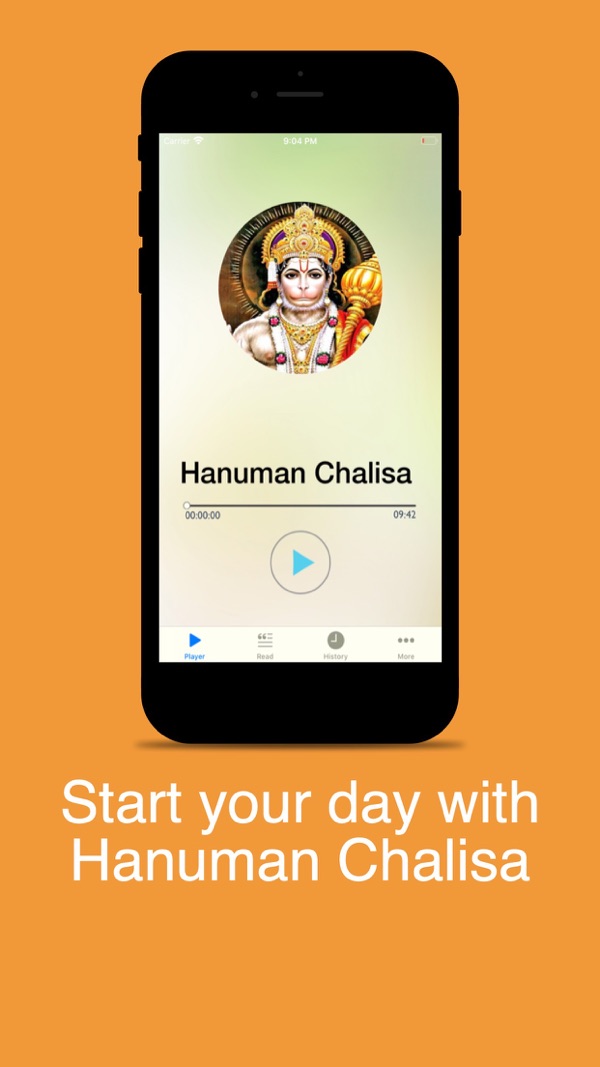
At the time of writing, its App Store listing shows:
Free, in the Book and Music categories First released in April 2020 22 ratings in the US store, averaging about 4.8 stars, the highest average among my apps with ten or more ratings Supports iOS 11.0 and later, on iPhone, iPad and iPod touch
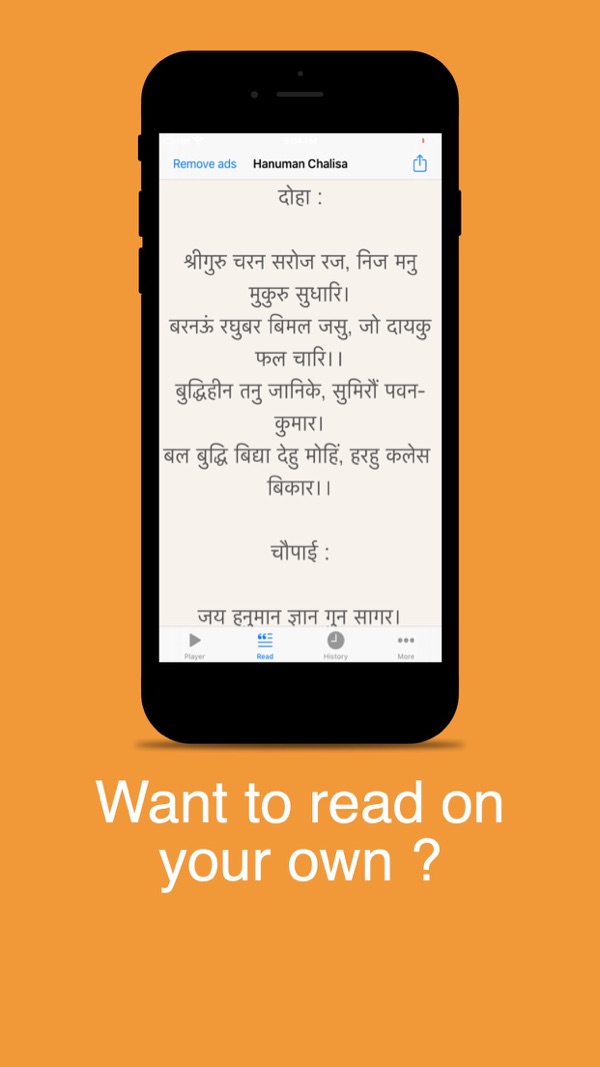
The listing describes the content simply: "This version has both Chalisa in English Language Script (for reading) and Audio." Here's how that maps to this article:
| What the listing says | Where it's covered |
| --- | --- |
| "Hanuman Chalisa : Offline" | Text, cue sheet and audio all bundled; no network code at all (section 2) |
| "Chalisa in English Language Script (for reading)" | Unicode text with Dynamic Type in a table view (section 4) |
| "…and Audio" | AVAudioPlayer with a .playback session and background mode (section 3) |
| "The iPhone, iPod & iPad version" | UIKit-first code on long-standing APIs, iOS 11 and up (throughout) |
I later built a much larger devotional app, Mandir Darshan, with live temple streams, the Bhagavad Gita and a chalisa collection. That one's a very different technical story, built on live streaming and picture-in-picture, and I'm covering it in its own article.
8. Before you ship a text-plus-audio app: a checklist
- It works in Airplane Mode from a fresh install: text, audio and highlighting.
- The category is
.playbackand theaudiobackground mode is enabled, so audio survives the Silent switch and the Lock Screen. - The cue sheet is validated. Start times are sorted, and every verse has one. Assert it in debug builds.
- Tapping a verse seeks the audio, and the highlight follows the audio, never the other way round.
- Lock-screen controls work, including the scrubber, and unsupported commands are disabled.
- A phone call pauses playback, and it resumes only if it was playing and the system says it may.
- Unplugging headphones pauses playback.
- Text respects Dynamic Type and VoiceOver. Test at the largest accessibility sizes.
- The session is deactivated when playback finishes, with
.notifyOthersOnDeactivation, so other audio can resume.
Wrapping up
A text-plus-audio app looks simple, and it can be, as long as you treat the audio session with respect. Bundle everything, describe timing with a tiny cue sheet, let AVAudioPlayer play, keep the highlight driven by currentTime, and give the system what it needs for the Lock Screen and for interruptions. It's well-established API, which is exactly why it still runs on iOS 11.
Try the app, or explore my other work:
Hanuman Chalisa : Offline (iOS): https://apps.apple.com/us/app/hanuman-chalisa-offline/id1509206340 All of my free iOS apps: https://apps.apple.com/us/developer/alok-singh/id1508795536 My portfolio: https://bestlatestapps.com/alok/
Have you built synchronised text and audio for lyrics, language lessons or audiobooks? I'd love to hear how you produced your timings. Tell me in the comments.
— Alok Kumar Singh
Originally published at <https://bestlatestapps.com/blog/text-plus-audio-fully-offline/>